
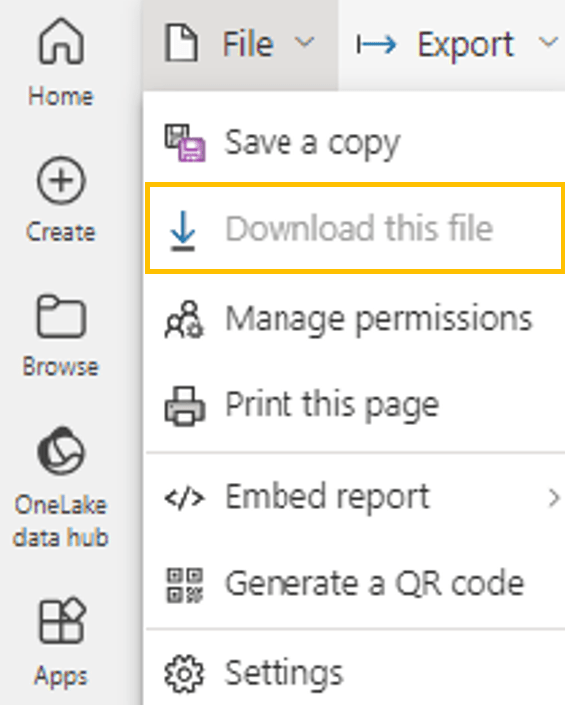
Have you ever wanted to download a report from Power BI Service, only to find the option greyed out?
We mostly face this issue when we get requests like this:
User requests:
User 1: I created a draft report in Power BI Service! Could you just copy/ paste a few pages from another Power BI report and change data source?
User 2: I created a report in Power BI Service, however it is slow. Could you check why is it slow?
If users created reports directly via Power BI Service (not via Power BI desktop application), these reports will not be downloadable. When you try to download these reports, this option will be greyed out.
So, what to do in this case?
The issue is that some options that exist in Power BI desktop application do NOT exist in Power BI Service edit mode for reports. And for user requests, we need these options.
Example: if we want to use performance analyzer we need to open the report in Power BI desktop application.
In this case we can use Power BI REST API called “Reports – Update Report Content In Group”.
It may sound complicated, but believe me, it is not complicated at all!
Follow these 4 steps:
1. Power BI Desktop application
The first step is to start from Power BI desktop application. Open it and go to Get data > Power BI semantic models and choose semantic model that is source for the report that you can’t download.
We need to have some data in the report to be able to publish this pbix file.

Leave report blank (no visuals), and let’s save this report as “BLANK report”. Publish this blank report to the same workspace as report that we can’t download.
2. Power BI Rest API
The second step, we go to Power BI Rest APIs page “Update Report Content In Group” – https://learn.microsoft.com/en-us/rest/api/power-bi/reports/update-report-content-in-group
Group means shared workspace (not my workspace).
This API is used to copy the content from existing report to another report.
And what is our goal?
Our goal is to copy the content of non-downloadable report to the blank report which is downloadable (it is downloadable because it is created in power bi desktop application and then published to service).

Click on the option “Try it” and sign in with your work email account (same account that you use to login to Power BI service).

3. Parameters
And now we came to the key step where we should provide:
1) workspace id of blank report
2) report id of blank report
3) workspace id of existing report
4) report id of existing report
To get these information, go to Power BI Service and open the Blank report.
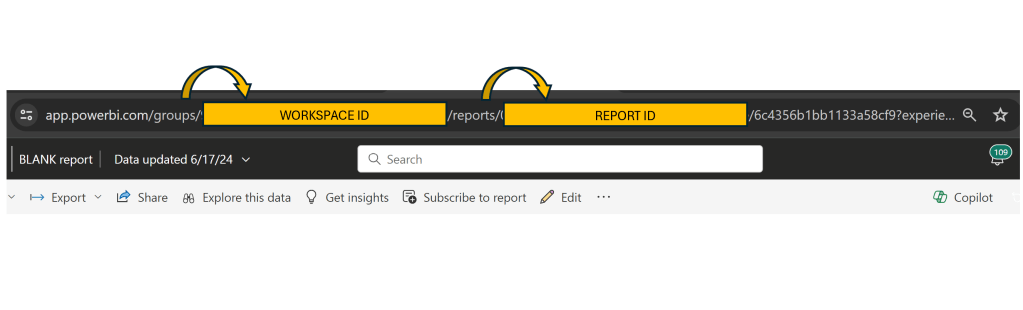
Copy workspace id into parameter groupId.
Copy report id into parameter reportId.

And now open existing report (which can’t be downloaded) in Power BI Service to get it’s workspace id and report id.
In Body section copy this:
{
"sourceReport": {
     "sourceReportId": "00000000-0000-0000-0000-000000000000",
     "sourceWorkspaceId": "00000000-0000-0000-0000-000000000000"
     },
"sourceType": "ExistingReport"
}
Replace zeros of sourceReportId with report id of existing report, and zeros of sourceWorkspaceId with workspace id of existing report.
4. Run the process
That’s it. We have everything prepared. Just click on “Run” button on the bottom of the page.

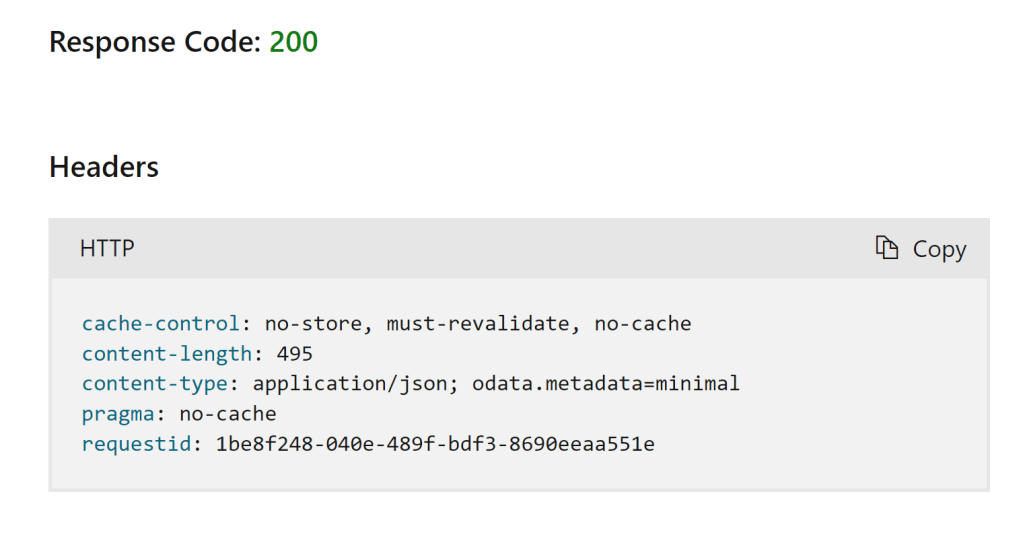
If you see “Response Code: 200”, the process has been completed successfully!
Otherwise, check if you properly copied workspace and report id values.
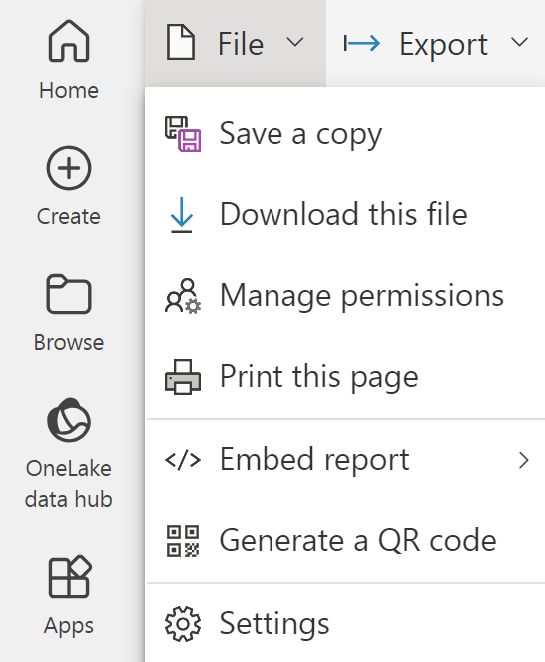
If now you open Blank report again in Power BI Service, you will see that it has same content as existing report.
The ONLY difference is that now you can download the report.
Conclusion: create report templates via Power BI desktop application and publish them to Power BI Service.
Teach users to always use these templates when creating new reports.
However, even when users create reports online from scratch, you can use Power BI Rest API to “fix” this issue.
 DATA TREKKING