
When testing reports with different datasets, we need to do it using Power BI desktop application.
Why?
Because in Power BI desktop application we can change semantic model (dataset) for the report.
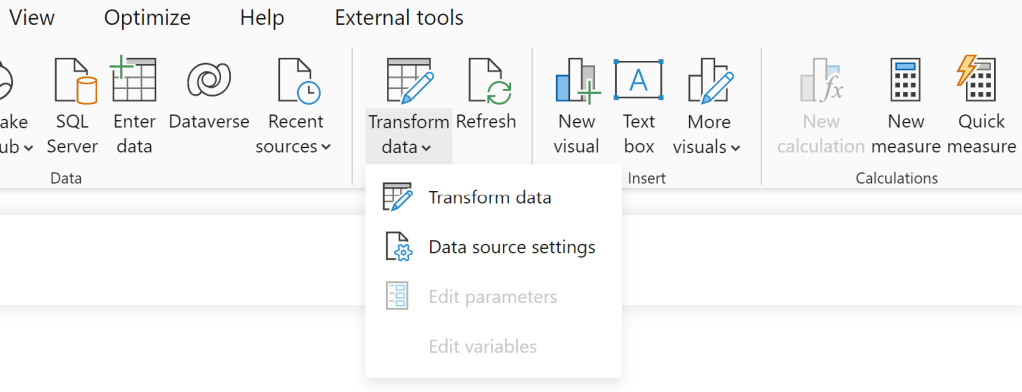
Go to Home > Transform data > Data source settings > choose semantic model (dataset)
On the other hand, if your report is published to Power BI service, you can’t change semantic model online.
So, you need to download each report, change semantic model and then republish the report.
Yes, if you have done this earlier, you know how annoying it can be.
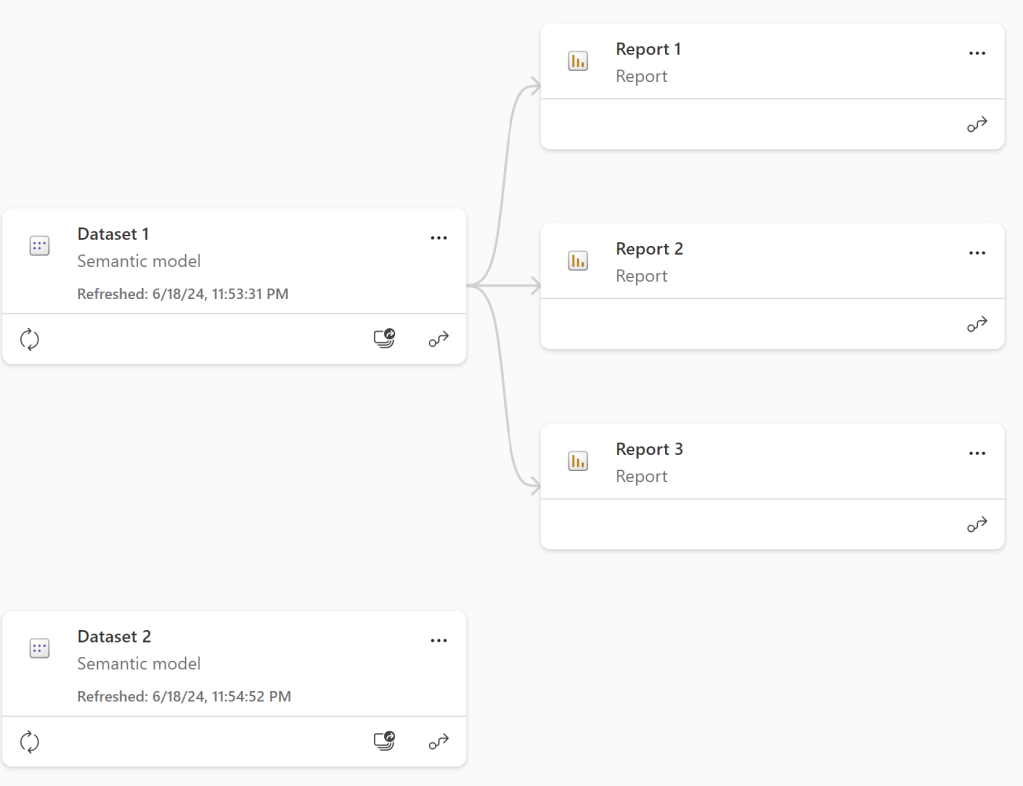
In our example, we have 3 reports (Report 1, Report 2 and Report 3).
All of them are linked to Dataset 1.
We now want to change it, so that all 3 reports are linked to Dataset 2.
Instead of downloading each report, we can use Power BI REST API called “Reports – Rebind Report In Group”.
The process is very similar to the previous post.
Follow these 3 steps:
1. Power BI Rest API
The first step, we go to Power BI Rest APIs page “Reports – Rebind Report In Group” – https://learn.microsoft.com/en-us/rest/api/power-bi/reports/rebind-report-in-group

Group means shared workspace (not my workspace).
This API is used to change semantic model of the report, ONLINE, without downloading it.
Click on the option “Try it” and sign in with your work email account (same account that you use to login to Power BI service).

2. Parameters
Now we came to the key step where we should provide:
1) workspace id of the report for which we want to change semantic model
2) report id of the report
3) dataset id (new dataset – in our case id of Dataset 2)
To get these information, go to Power BI Service and open the report.
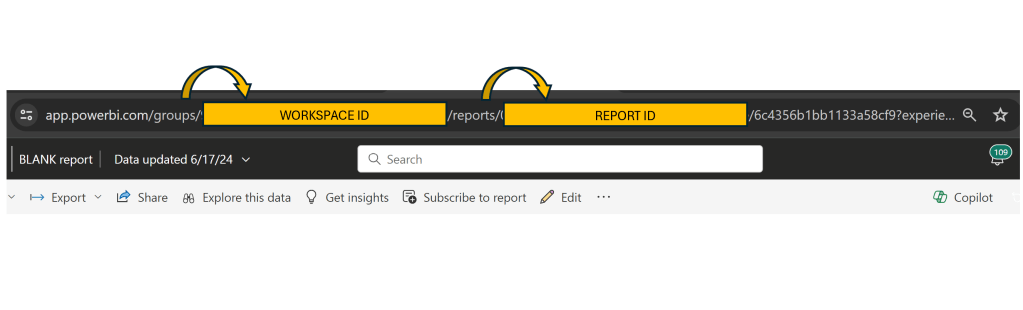
Copy workspace id into parameter groupId.
Copy report id into parameter reportId.
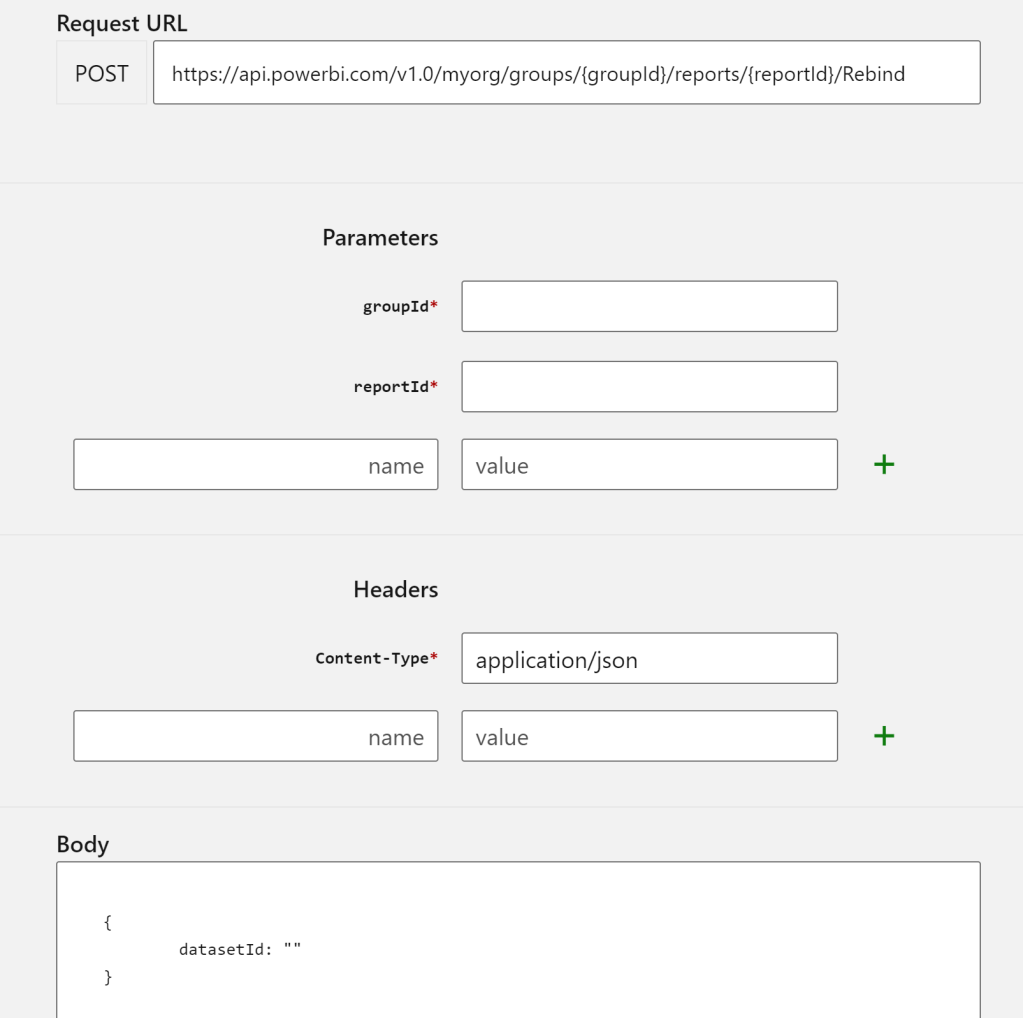
And now open new dataset (Dataset 2) in Power BI Service to get it’s id.

In the Body section copy this:
{ datasetId: "00000000-0000-0000-0000-000000000000"}
Replace zeros of datasetId with dataset id of the new dataset.
3. Run the process
That’s it. We have everything prepared. Just click on “Run” button on the bottom of the page.
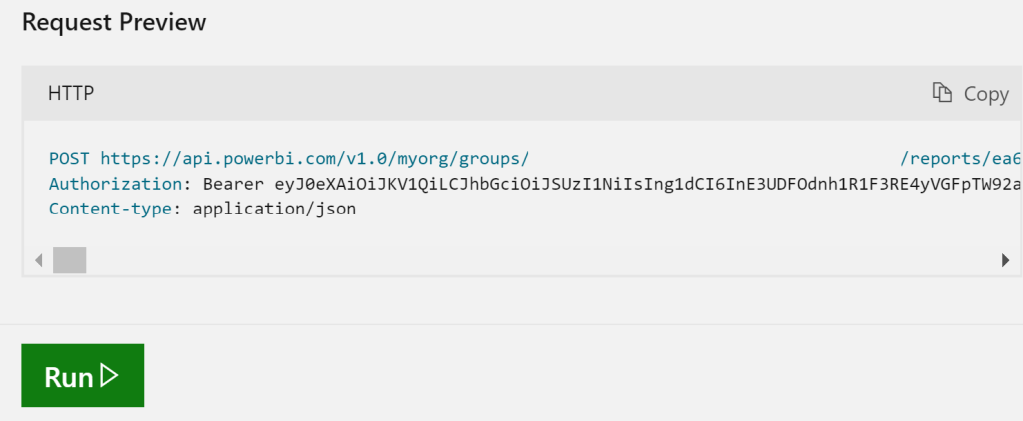
If you see “Response Code: 200”, the process has been completed successfully!
Otherwise, check if you properly copied workspace id, report id and dataset id values.

Now, to make this update to all other reports, just replace report id with report id of the next report.
If you have really a lot of reports to be updated, using Python to automate this task can be helpful (maybe we will see demonstration in some of next posts).
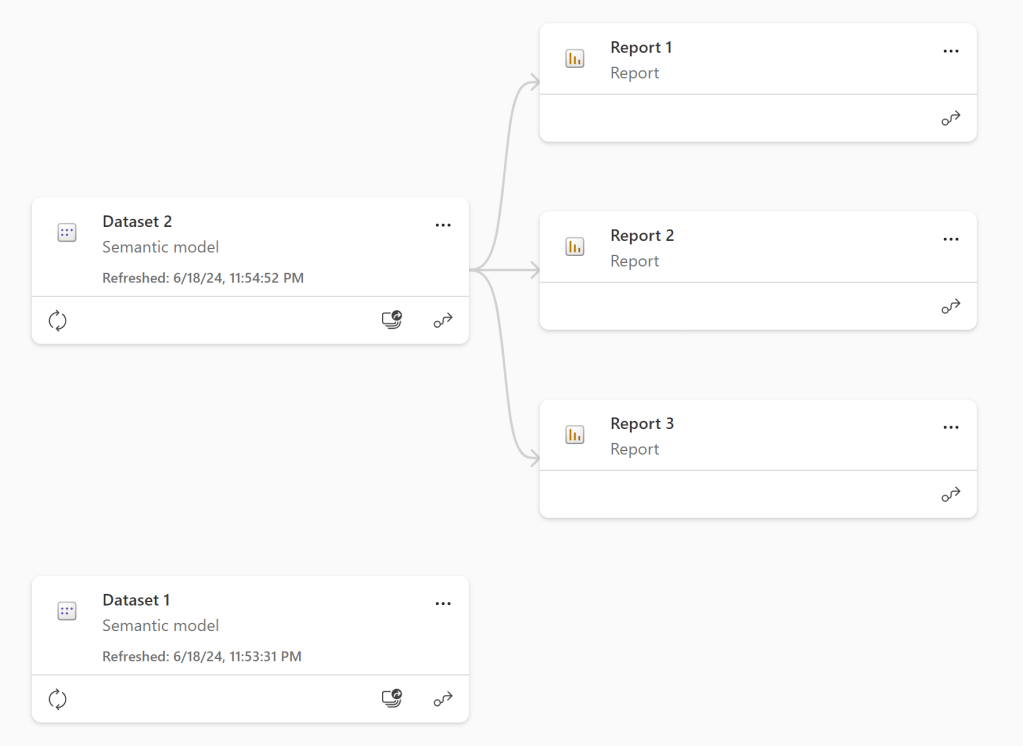
Finally, this is the result. Without downloading, changing data source and republishing reports, we managed to replace semantic models online.
 DATA TREKKING