

Power BI has a great feature – scheduled refresh of data.
What does it mean?
It means that we can specify how frequently we want to refresh data on Power BI Service.
For example: we want to refresh data every day at 8 am.
Or maybe, we want to refresh data every working day at 8 am, 9 am and 10 am.
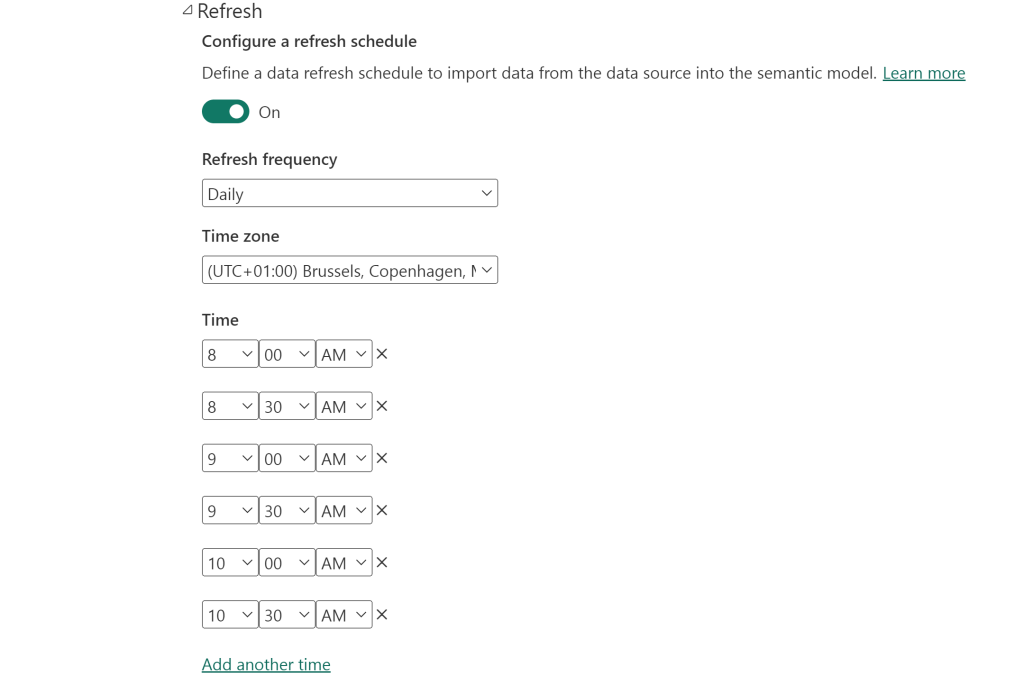
And here we come to the main issue, and it is limitation of 30 minutes!
Imagine that we have data which needs to be refreshed every day in period from 8am to 10am every 10 minutes.
Schedule refresh option will fail because it could do it every 30 minutes, but not every 10 minutes.
And there is no option on Power BI service where we can change this option.
In such scenarios, Power Automate comes to the rescue!
What is Power Automate?
It is native part of Microsoft Power Platform, a service that helps automate workflows between apps and services to synchronize files, get notifications, collect data, and more.
This time we will focus on Power BI feature called “Refresh data”.
Let’s see how it works.
Login to Power Automate using same credentials that you use to login to Power BI service – https://www.microsoft.com/en-us/power-platform/products/power-automate
Click on the button “Create”.

In the next step we define how we want to trigger this process.
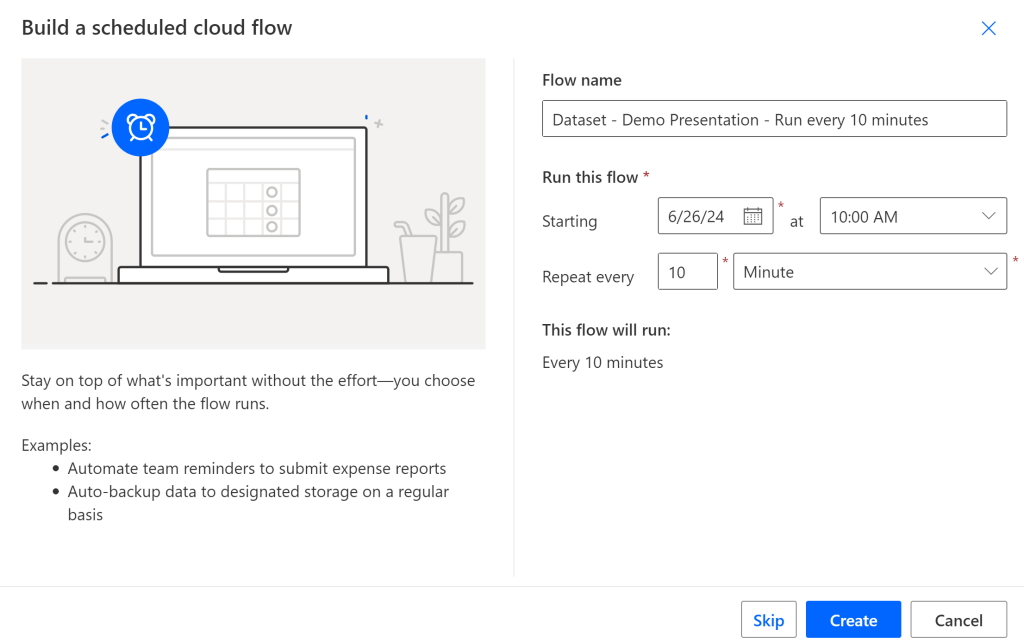
Choose “Scheduled cloud flow” as we want to specify when and how frequent to schedule it.

Next, choose name for this process and specify how frequent you want to run this process.
In my example, it is 10 minutes.
This is just basic setup, we will define everything in the next step (you can also just click on “Skip” button at this moment).
Click on the button “Create”.
Now, you will see the button “Recurrence” at the middle of the page. Click on it and now you will have much more control on refresh frequency.
Choose interval 1 week.
Choose your time zone.
Choose on which days of the week you want refresh.
And finally, choose at which hours and minutes.
In my example, i have set refresh every week on working days, every 10 minutes between 8 am and 10 am.

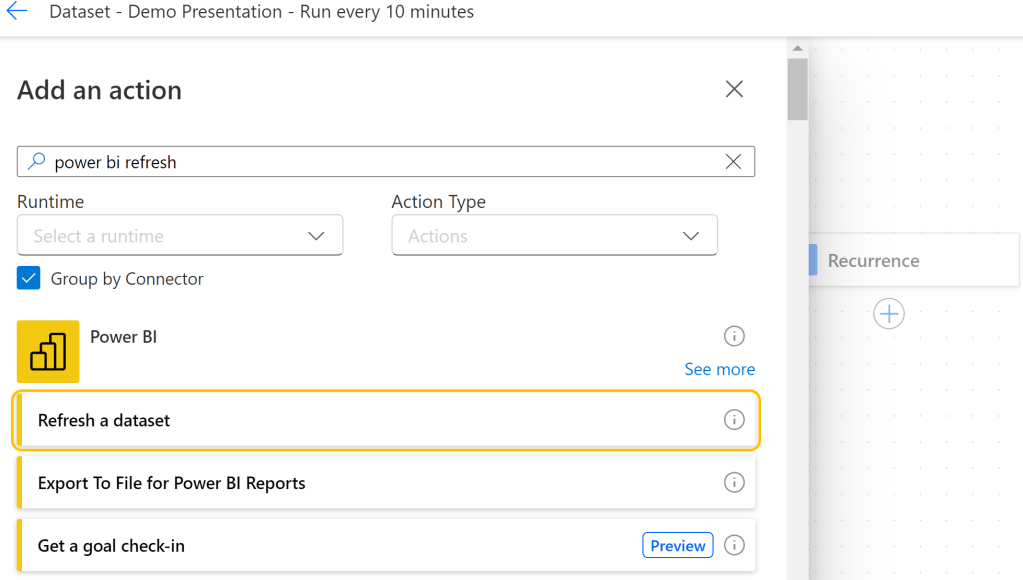
Next step: click on plus icon below “Recurrence” and then click on “Add an action”.
Type “power bi refresh” and click on option “Refresh a dataset” below Power BI icon:
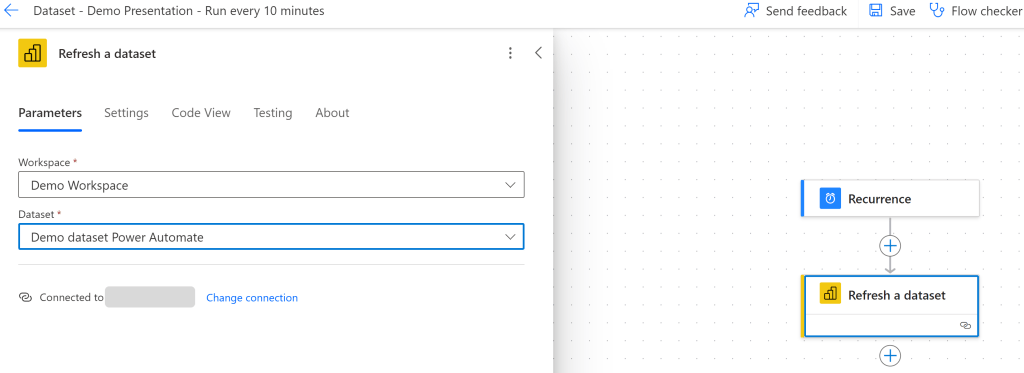
The new step has been created.
Here you need to choose two parameters from dropdown lists:
1) workspace name
2) dataset name
If you don’t see workspaces that you expect, make sure you logged in to Power BI using same account which you use to log in to Power BI service.
That’s it. Click on “Save” at the top of the page.
If everything is fine, you will see message:

Let’s test it. Click on the option “Test”:

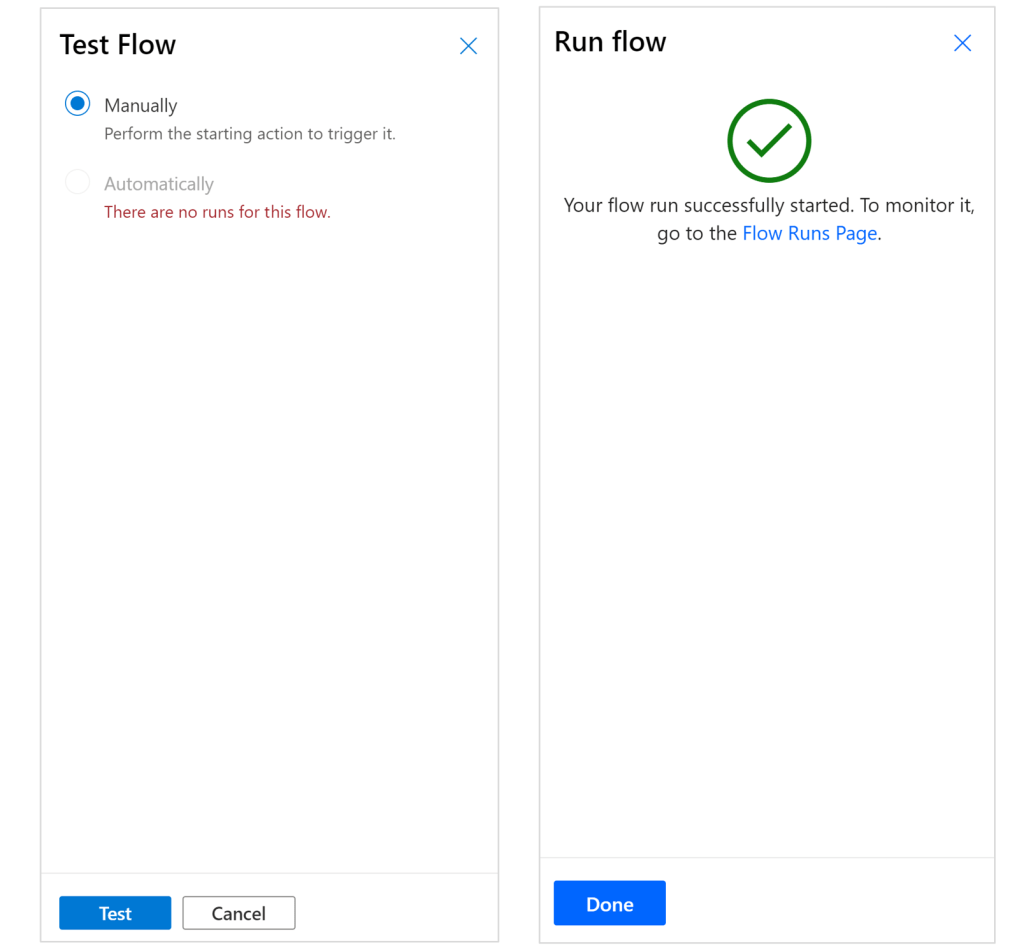
Choose “Manually” and then click on “Test” at the bottom and then “Run Flow”. Finally, click on “Flow Runs Page” to monitor the process:
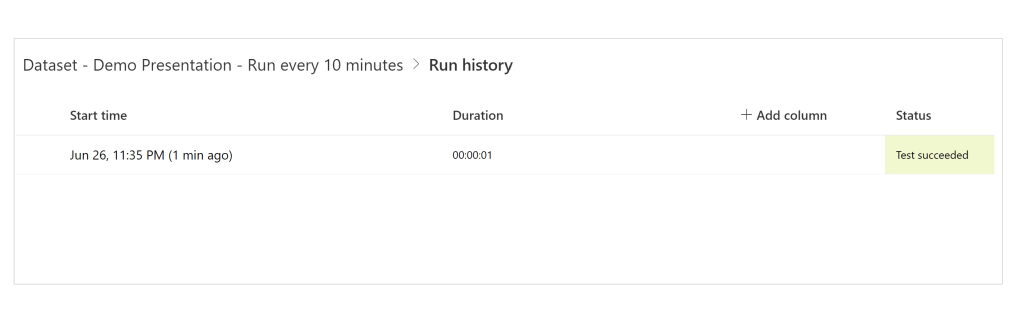
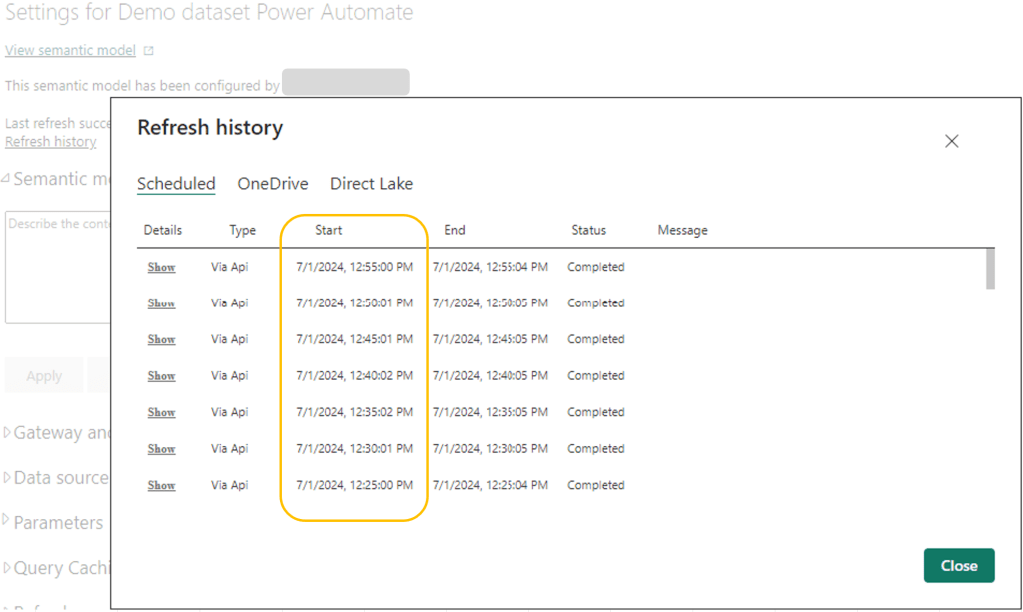
Let’s see how it looks like on Power BI Service side, under dataset (semantic model) refresh history:

As you can see it is running the process every 10 minutes, as expected!
And here is additional tip! Very nice feature, that seems to be overlooked by many Power BI developers.
I created additional flow which runs every 5 minutes in period between 10 am and 1 pm. Why did i do that?
To prove that when refreshing data via Power Automate, we do not have anymore semantic model refreshes daily limit.
If you have Pro license, you can refresh dataset 8 times per day.
With premium capacity, you can refresh dataset 48 times per day (every 30 minutes).
Using Power Automate, you do not have these limits anymore as they are related only for Power BI Service option Scheduled Refresh, but not for Power Automate!
Now you can enjoy in almost real-time data.
Of course, just make sure data can really be refreshed within specified time.
 DATA TREKKING