
I am sure that you have faced this already.
The user sends you the link of the report on Power BI Service.
Requirement is clear. You just need to download the report and add a logo.
Easy task, right?
Yes, until you find out that “download this file” option is greyed out!
I know how it feels.. pretty frustrating, right?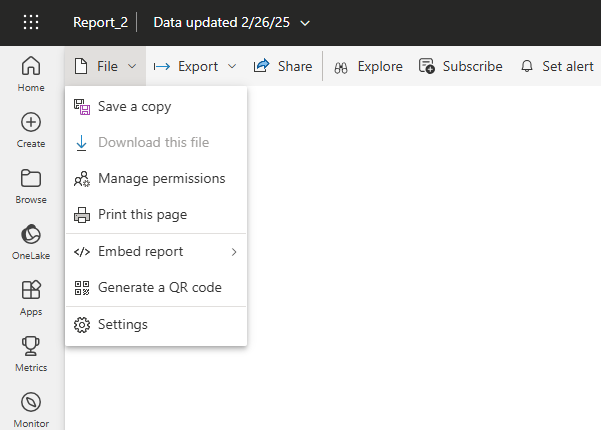
What to do in this case?
Adding a logo to the report seems like a basic task. However, this is something that you can’t do in Power BI Service.
You need to do it in Power BI Desktop application.
There are different reasons why download option is disabled. But the main reason from my experience is that user is creating report in Power BI Service (instead of in Power BI desktop application) and the report is targeting dataset (semantic model) published to a different workspace.
How to solve this issue?
1. Create NEW BLANK report in Power BI Desktop Application
Why in desktop application? Why not in Power BI Service?
If we publish the report from desktop app, it will be downloadable from Power BI Service.
So, create new pbix file, connect to same dataset which is source for old (non-downloadable) report.
Click on Get data > Power BI semantic model and then choose the dataset.

Save this file as “BLANK REPORT” and publish it to the same workspace where old report is published.
OK, so now in the same workspace we have 2 reports.
The old one, which can’t be downloaded.
And the new one, which can be downloaded, but currently it is blank.
We are now ready to move to the next step.
2. STEP – navigate to Power BI REST API called “Reports – Update Report Content In Group“
Yes, REST API sounds scary, but for our purpose, there is nothing scary!
NO CODING skills needed!
Just click on “Try It” button: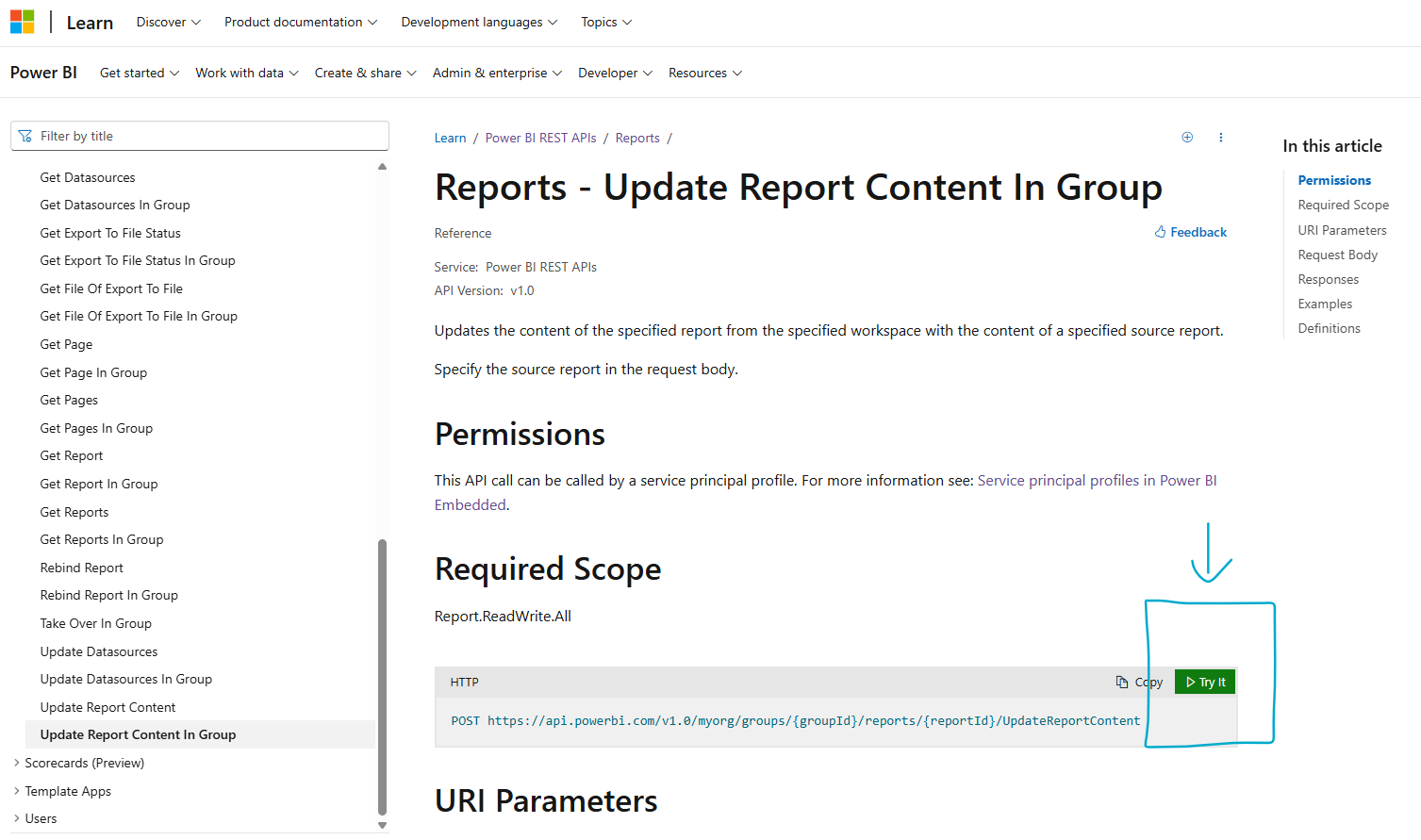
Login using the same credentials you use to login to Power BI Service.
If you are already logged in, just click on “Continue with Account”.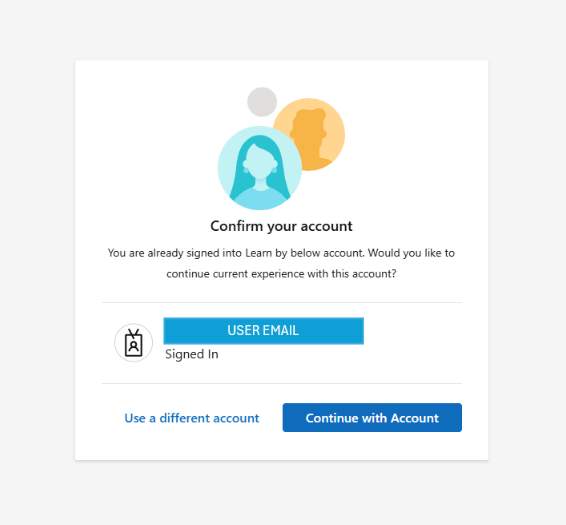
Let’s see what we need:
- workspace id (where old and new report are published)
- report id of the old report
- report id of the new report
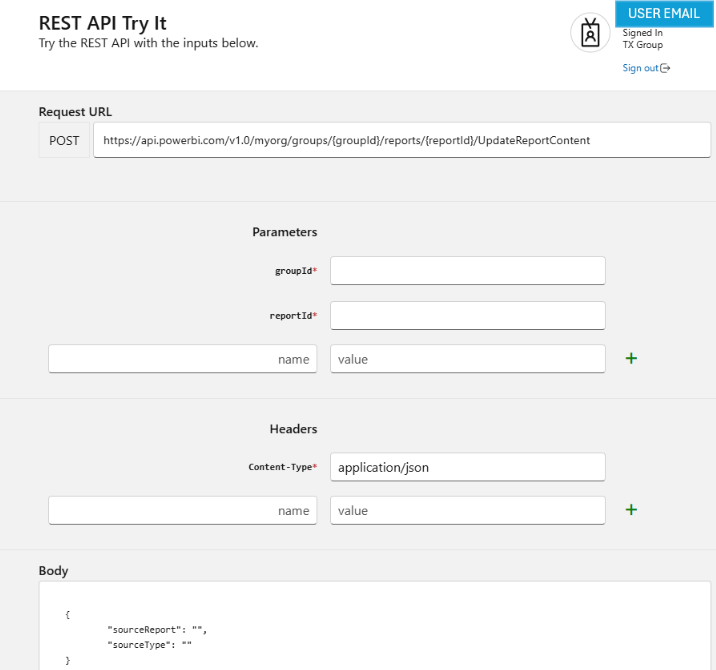
Where to find these? Open the new report in Power BI Service.
After groups/ comes workspace id in the format: abc12345-123a-123b-1234-abc123abc123
After reports/ comes report id in the format: abc12345-123a-123b-123c-abc123abc123

Populate parameter groupId* with workspace id.
Populate parameter reportId* with report id of the new (Blank) report.
Now open the old report to get report id of the non-downloadable report.
The workspace id is the same as for old report.
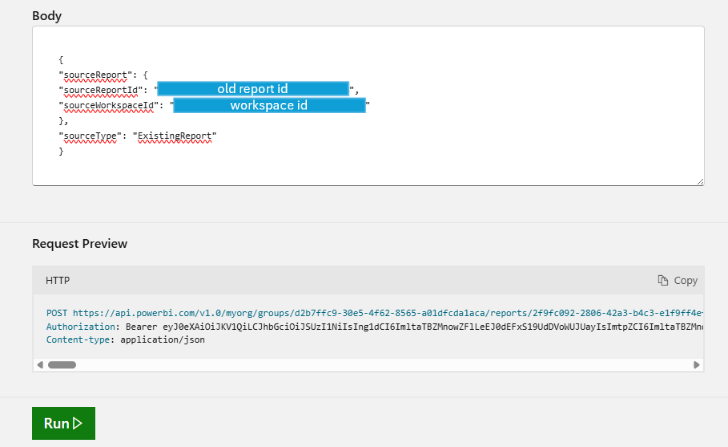
Populate Body text in this format:
{
“sourceReport”: {
“sourceReportId”: “abc12345-123a-123b-1234-abc123abc123“,
“sourceWorkspaceId”: “abc12345-123a-123b-1234-abc123abc123“
},
“sourceType”: “ExistingReport”
}
Replace italic text with report id of the old report and workspace id with actual workspace id.
Once everything is set, scroll down and click on button “Run”.
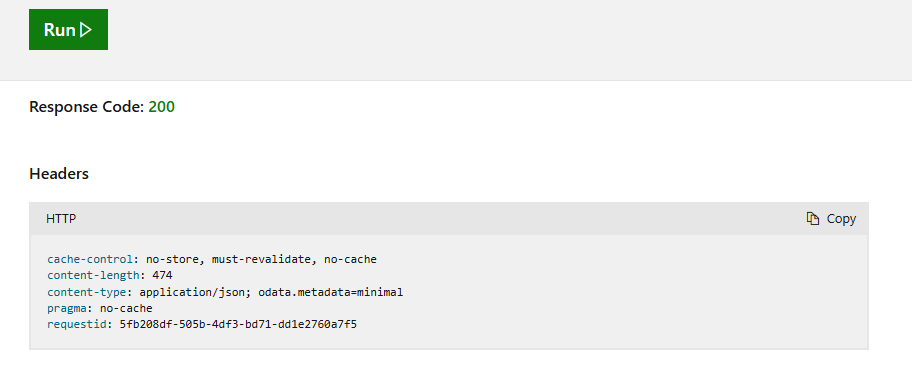
If everything is fine, you will get Response Code: 200.
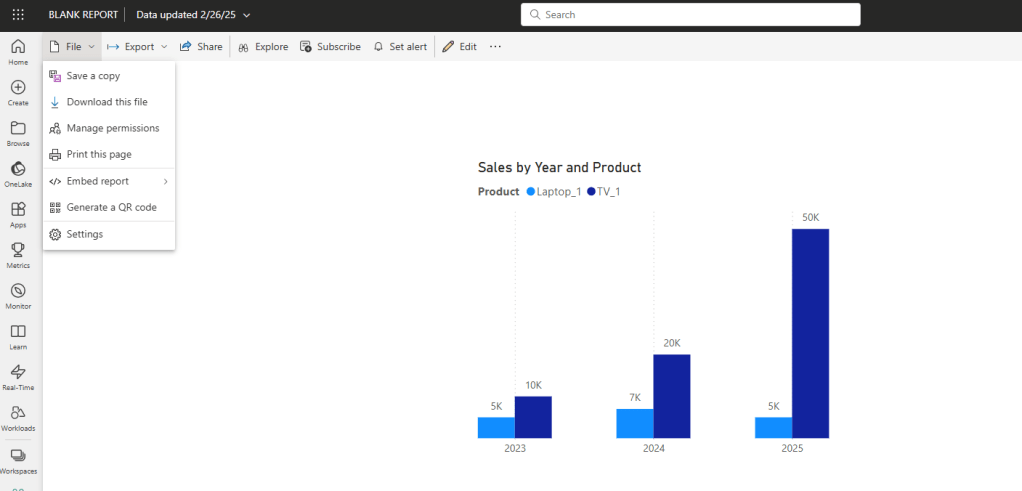
If you now refresh BLANK report, you will see that it has the same content as old report.
The ONLY difference is that now you can download it!
If parameters were incorrect, you will get the error.
Make sure that you correctly did copy/paste of values.
Once you download the report, make updates, just rename it from BLANK report to actual name of the old report.
After you publish it, it will override the old report and from now on it will be downloadable!
I hope this post was valuable. In the next few posts we will see some other examples of how Power BI can help us and how we can automate this work.
 DATA TREKKING