

Have you ever needed to connect a published Power BI report to a different dataset?
The usual process of downloading the report, reconnecting to the new dataset, republishing, and handling duplicate report names can be time-consuming.
Luckily, the Power BI REST API provides a more efficient way to achieve this with the Rebind Report In Group API. With just a simple API call (NO CODING SKILLS NEEDED), you can seamlessly switch a report’s dataset without the hassle of manual reconfiguration.
In this post, I’ll walk you through how to use this powerful feature. And in my next post, I’ll show you how to automate the process using power shell, making it even easier to manage report migrations at scale.
Why would we need to switch dataset for reports?
In my scenario:
- I needed to create the historical app. The process was to copy dataset and all reports from Production workspace into “Historical” workspace. The original workspace (dataset) is showing actual data. The historical workspace (dataset) should show the state of the latest date of previous year (snapshot)
- When copied reports to new workspace, they still targeted dataset from original workspace. I needed to find the best solution how to switch them to a dataset in the new historical workspace
- Downloading each report, switching to a new dataset, republishing report was not ideal solution
- So, in this post i will show you how this can be used using Power BI Rest API. And in next post i will show you how to make it even better using power shell script
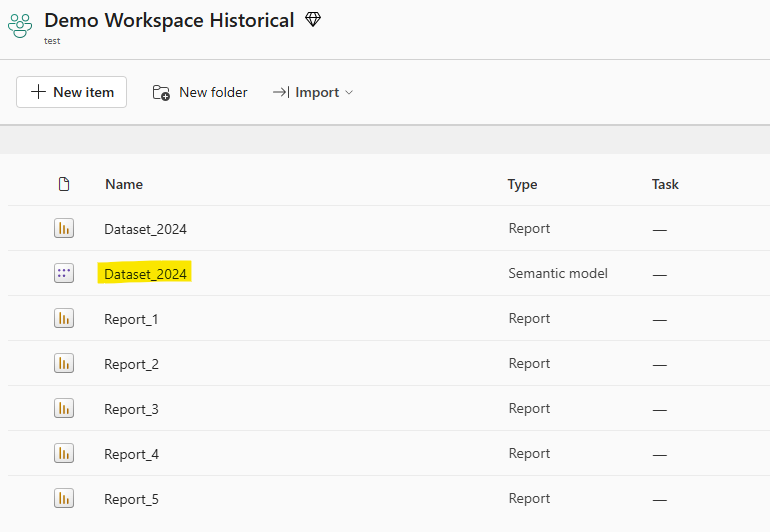
This is the starting point. New workspace, new reports pointing to original dataset (Dataset_2025). I need to switch them to Dataset_2024:

1. STEP – navigate to Power BI REST API called “Reports – Rebind Report In Group“
NO CODING skills needed!
Just click on “Try It” button:
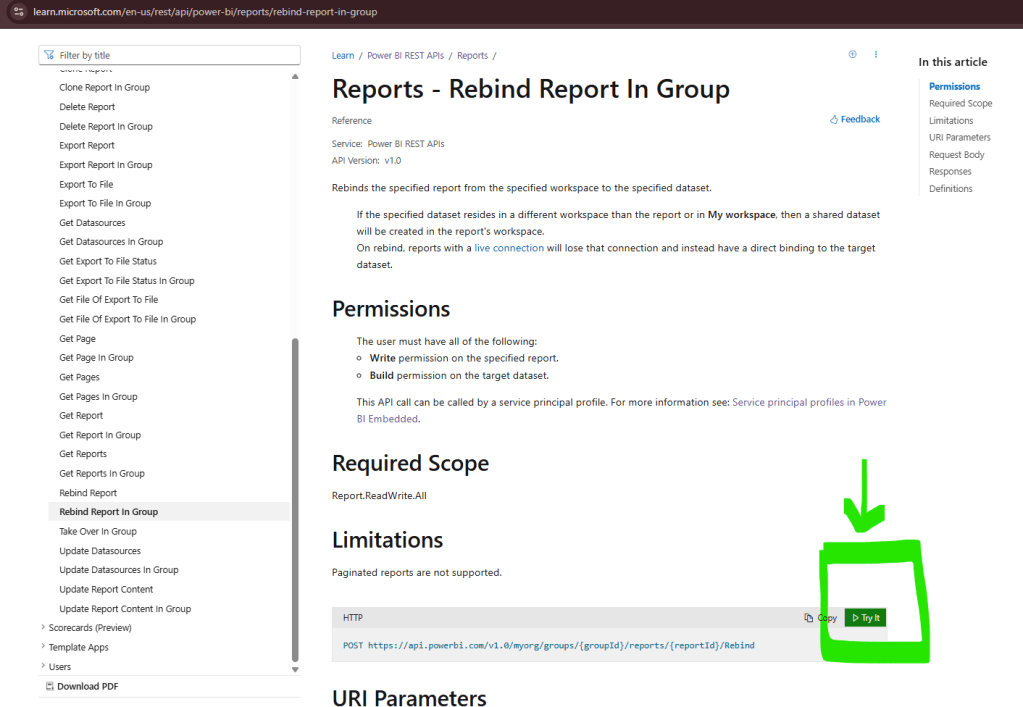
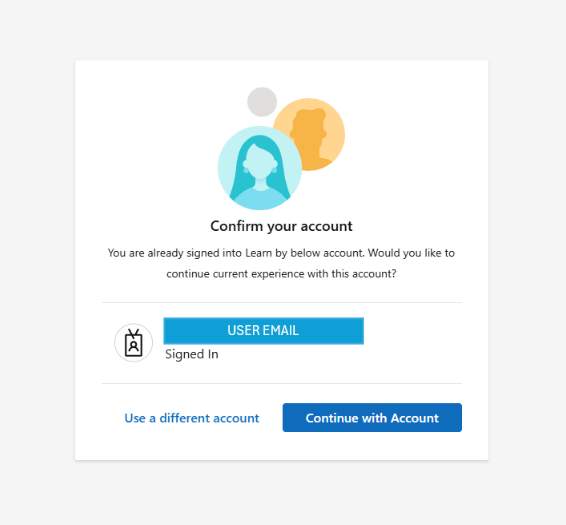
Login using the same credentials you use to login to Power BI Service.
If you are already logged in, just click on “Continue with Account”.
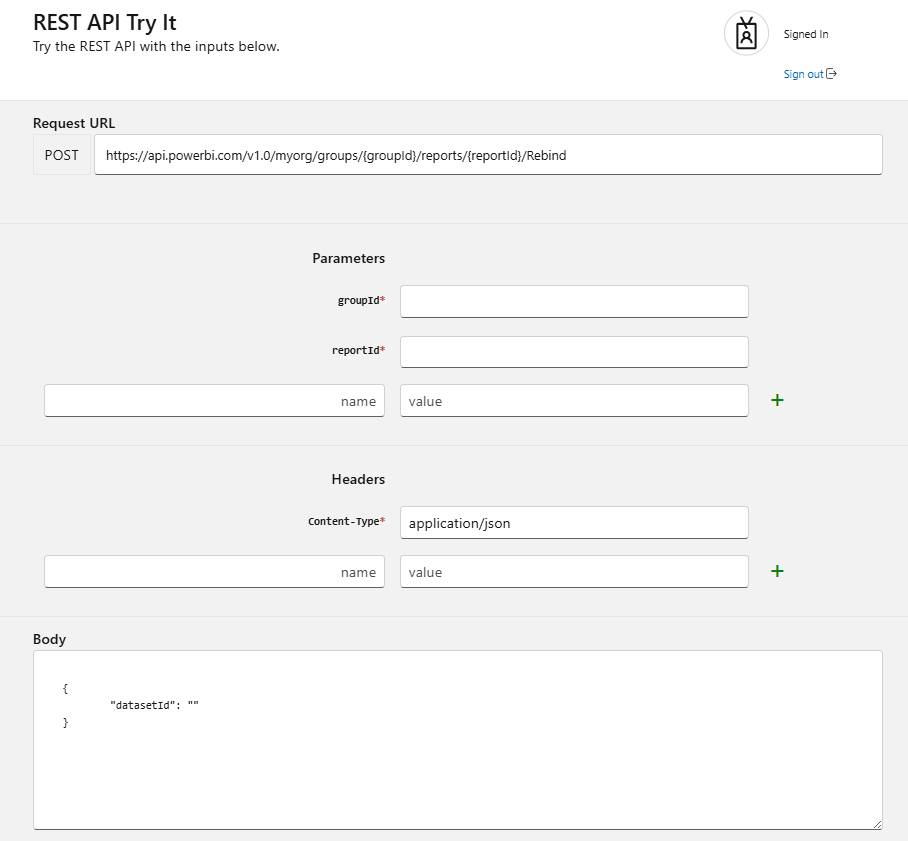
Let’s see what we need:
- workspace id (where new reports are published)
- report id of the new report
- dataset id (new – Dataset_2024)
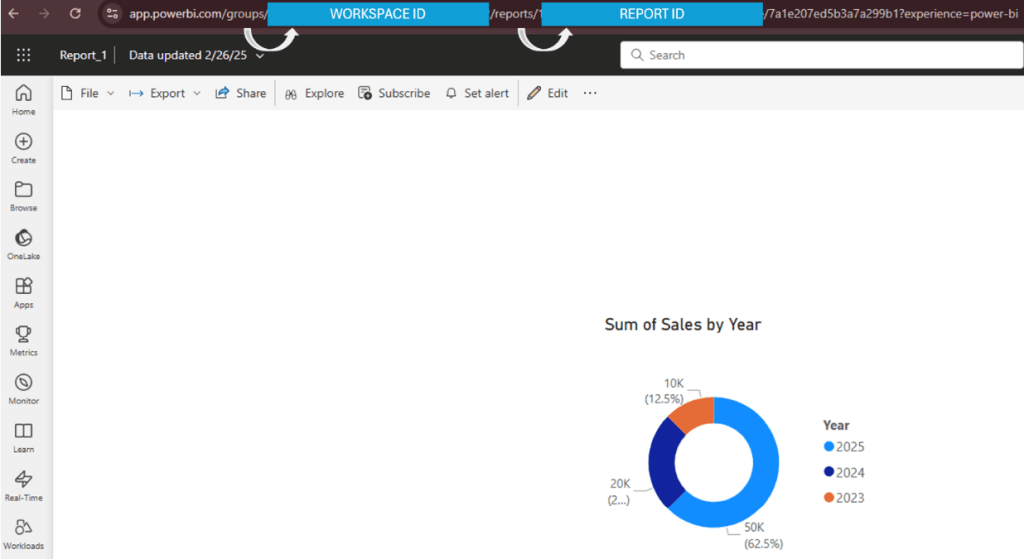
Where to find these? Open the new report in Power BI Service.
After groups/ comes workspace id in the format: abc12345-123a-123b-1234-abc123abc123
After reports/ comes report id in the format: abc12345-123a-123b-123c-abc123abc123
Where to find ID of the new dataset?
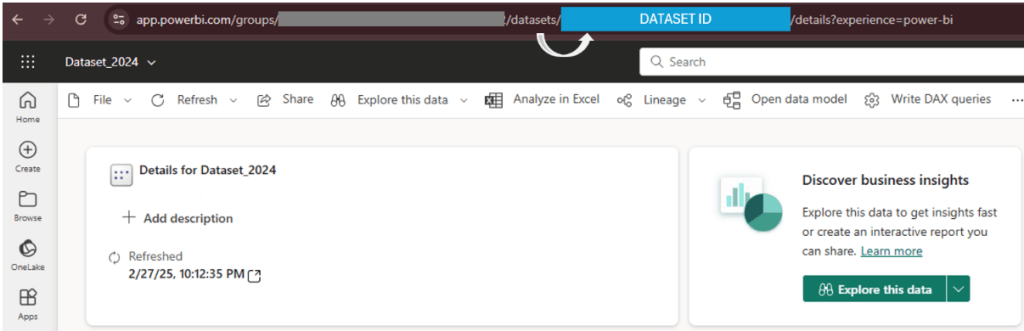
Click on the new dataset (in my case Dataset_2024):
After datasets/ comes dataset id in the format: abc12345-123a-123b-1234-abc123abc123
Populate parameter groupId* with workspace id.
Populate parameter reportId* with report id of the new report.
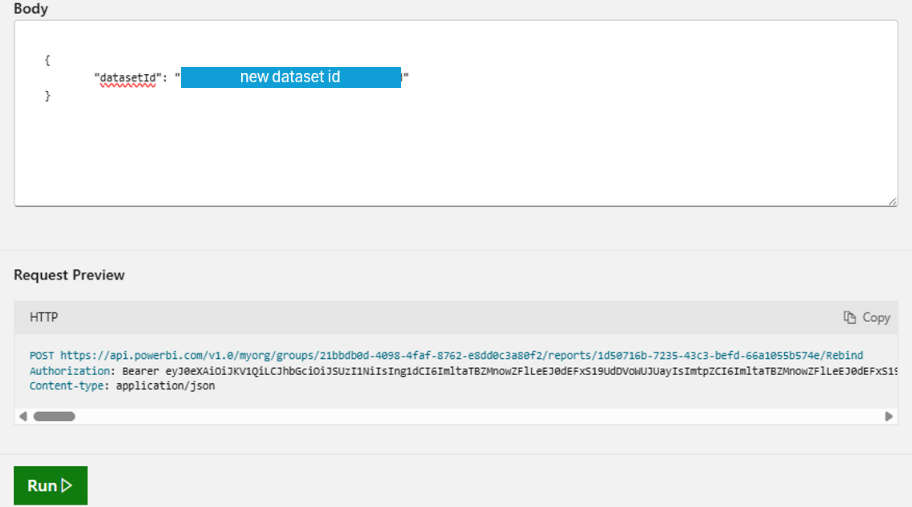
Populate Body text in this format:
{
“datasetId”: “abc12345-123a-123b-1234-abc123abc123“
}
Replace italic text with dataset id of the new dataset.
Once everything is set, scroll down and click on button “Run”.
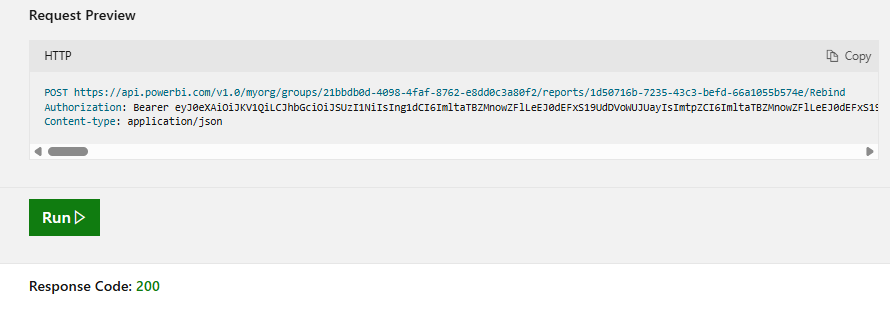
If everything is fine, you will get Response Code: 200.
Now, when we go back to new (Historical) workspace and open lineage view, we can see that Report_1 has been switched to Dataset_2024.

Repeat the same process for all other reports.
This is very nice solution if you have let’s say up to 10 reports.
But what if you have 100 reports?
Would you go step by step, 100 times?
Of course not!
Let’s go to the next post and see how power shell can help us to automate this process!
 DATA TREKKING