

Have you ever needed to connect a published Power BI reports to a different dataset?
But not a few reports.. This can be completed easily with Part 1 of this subject (previous post).
Now i am talking about 10 reports or more. Maybe all reports in the workspace?
In that case, using Power BI Rest API via browser can save some time, but still can be time consuming.
We are moving one step further – HOW TO USE POWER BI REST API VIA POWERSHELL to automate the process?
Haven’t used Power Shell yet?
Me neither.. until i needed it.
And this is how i solved it. I will show you step by step guide.
First of all…
What is PowerShell?
PowerShell is a command-line shell and scripting language developed by Microsoft, designed primarily for automating administrative tasks and managing system configurations.
How PowerShell Can Help in Automating Power BI REST API Tasks?
Power BI provides a REST API that allows users to interact programmatically with Power BI services – managing workspaces, datasets, reports, dashboards, and more. PowerShell can be used to automate these interactions, reducing manual effort and ensuring consistency.
Now, let’s see our issue.
We have 10 reports linked to Dataset_2025.
We want all these reports linked to Dataset_2025 to switch to Dataset_2025_New.
There is also 1 report targeting Dataset_dummy_data. The script will have no impact on this dataset / report.

For this purpose, we will use Windows PowerShell ISE.
Click on Start, type PowerShell and click on “Windows PowerShell ISE”.

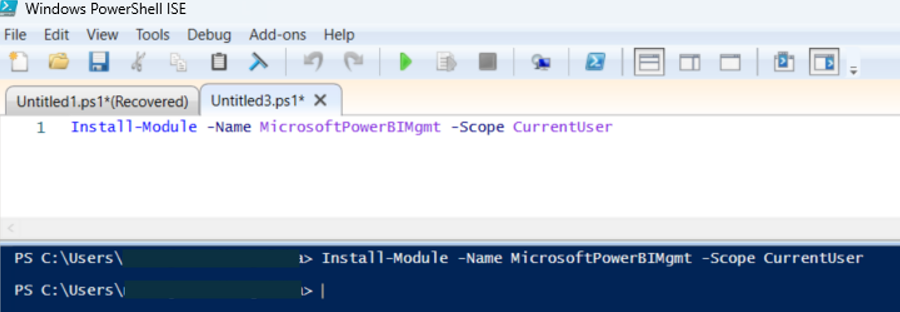
The first step, let’s open PowerShell ISE and install needed module.
Copy/paste script below and then click on green arrow as on screenshot below.
Install-Module -Name MicrosoftPowerBIMgmt -Scope CurrentUser
Next, let’s connect to our Power BI Service account. For that purpose we use this script:
# Connect to the Power BI service account
Connect-PowerBIServiceAccount
The sign # is used for commenting. So the first line above is just a description what the row below does.
Once you press Enter, you will get pop-up window to login to Power BI Service (use your credentials which you use to login to Power BI Service).
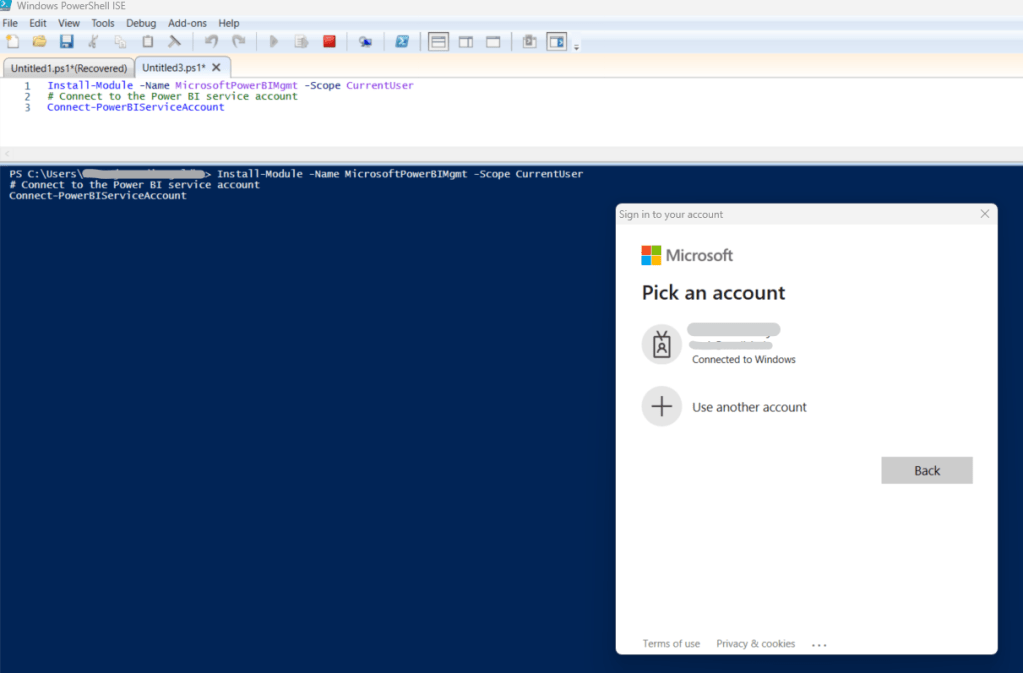
If everything is fine, you will see new 3 rows, showing information about your environment, tenantId and username.
That was the first goal – connecting to Power BI Service using PowerShell.
Now, we are going to set parameters.
For the purpose of our scenario, we will need 3 variables:
Workspace ID
Current Dataset ID
New Dataset ID
Define variables
$workspaceId = “abc12345-123a-123b-1234-abc123abc123” # Workspace ID
$currentDatasetId = “abc12345-123a-123b-1234-abc123abc123” # Current Dataset ID
$newDatasetId = “abc12345-123a-123b-1234-abc123abc123” # New Dataset ID
Within quotes i just set placeholder, please use your actual information to fill variable value.
Next, let’s use the first Power BI REST API within PowerShell to get the list of all reports within our workspace.
# Get all reports in the workspace
$reports = Invoke-PowerBIRestMethod -Url “https://api.powerbi.com/v1.0/myorg/groups/$workspaceId/reports” -Method Get | ConvertFrom-Json
Bolded text $workspaceId is targeting the workspace id that you specified as the first variable.
As this part of the script returns all reports within specified workspace, we actually want to filter only reports that are linked to Dataset_2025 (in our case, variable $currentDatasetId).
To get it, we use this script:
# Filter reports bound to the current dataset
$reportsToRebind = $reports.value | Where-Object { $_.datasetId -eq $currentDatasetId }
In order to switch reports to the new dataset, we are using Foreach loop. It will go report by report that is connected to $currentDatasetId and switch (rebind) to the new dataset (variable $newDatasetId).
During the process, it will write which report has been processed.
# Loop through each report and rebind to the new dataset
foreach ($report in $reportsToRebind) {
$reportId = $report.id
$reportName = $report.name
Write-Host “Rebinding report: $reportName ($reportId) from dataset $currentDatasetId to $newDatasetId”
# Define the API URL
$apiUrl = “https://api.powerbi.com/v1.0/myorg/groups/$workspaceId/reports/$reportId/Rebind”
# Create the body as a JSON string
$body = @{
datasetId = $newDatasetId
} | ConvertTo-Json -Depth 10
# Perform the POST request to rebind the report
try {
Invoke-PowerBIRestMethod -Url $apiUrl -Method Post -Body $body -ContentType “application/json”
Write-Host “Successfully rebound report: $reportName”
} catch {
Write-Host “Failed to rebind report: $reportName. Error: $_” -ForegroundColor Red
}
}
And finally, here is the whole script with output messages:
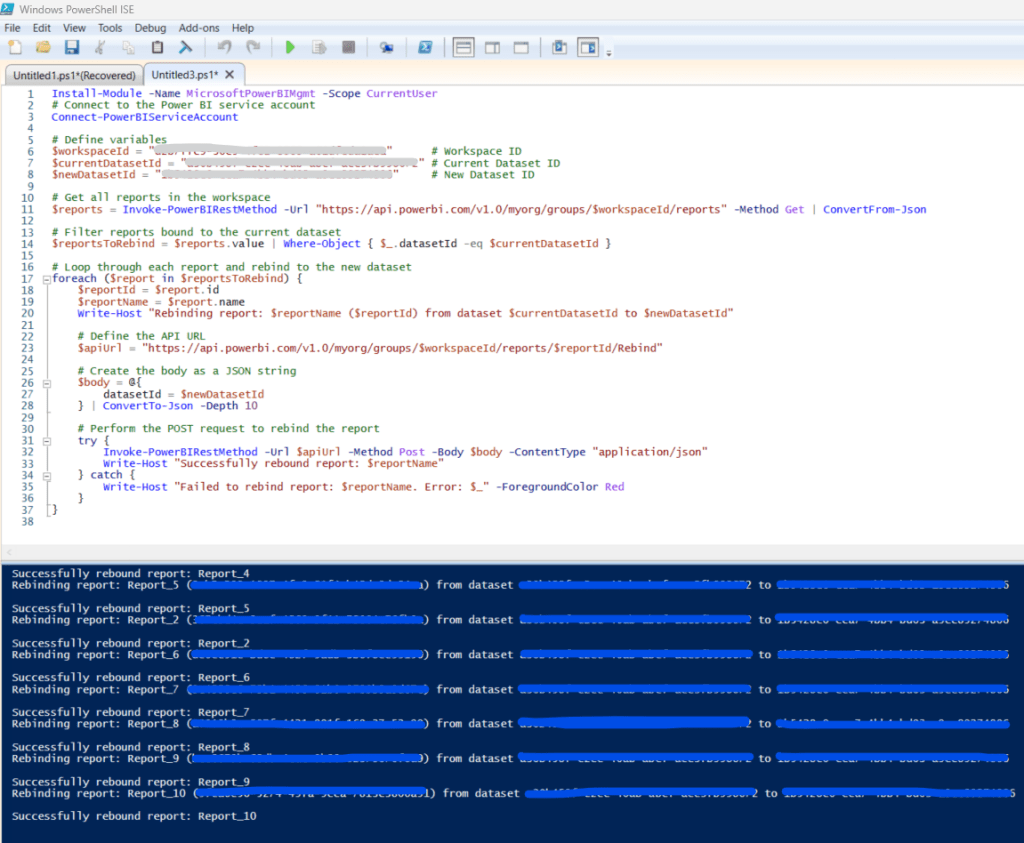
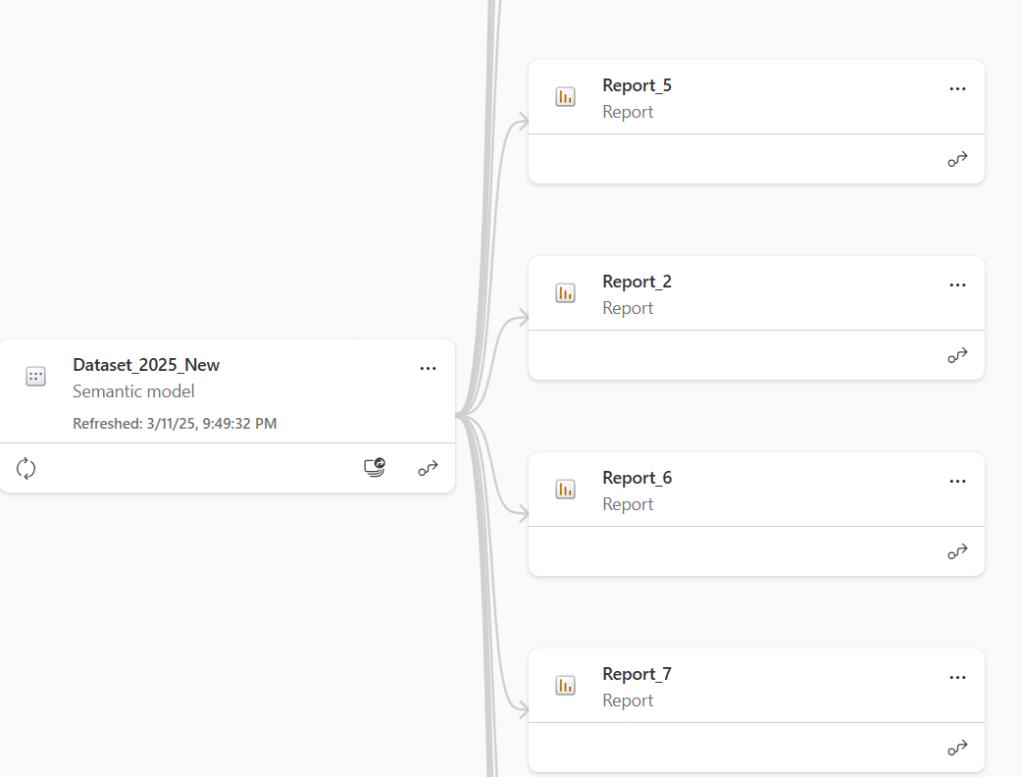
And of course, check that it actually worked.. As expected, all specified reports are now targeting Dataset_2025_New:
Full script below:
Install-Module -Name MicrosoftPowerBIMgmt -Scope CurrentUser# Connect to the Power BI service accountConnect-PowerBIServiceAccount# Define variables$workspaceId = "abc12345-123a-123b-1234-abc123abc123" # Workspace ID$currentDatasetId = "abc12345-123a-123b-1234-abc123abc123" # Current Dataset ID$newDatasetId = "abc12345-123a-123b-1234-abc123abc123" # New Dataset ID# Get all reports in the workspace$reports = Invoke-PowerBIRestMethod -Url "https://api.powerbi.com/v1.0/myorg/groups/$workspaceId/reports" -Method Get | ConvertFrom-Json# Filter reports bound to the current dataset$reportsToRebind = $reports.value | Where-Object { $_.datasetId -eq $currentDatasetId }# Loop through each report and rebind to the new datasetforeach ($report in $reportsToRebind) { $reportId = $report.id $reportName = $report.name Write-Host "Rebinding report: $reportName ($reportId) from dataset $currentDatasetId to $newDatasetId" # Define the API URL $apiUrl = "https://api.powerbi.com/v1.0/myorg/groups/$workspaceId/reports/$reportId/Rebind" # Create the body as a JSON string $body = @{ datasetId = $newDatasetId } | ConvertTo-Json -Depth 10 # Perform the POST request to rebind the report try { Invoke-PowerBIRestMethod -Url $apiUrl -Method Post -Body $body -ContentType "application/json" Write-Host "Successfully rebound report: $reportName" } catch { Write-Host "Failed to rebind report: $reportName. Error: $_" -ForegroundColor Red }}
Just replace variables with your actual values and you are good to go!
PowerShell is a powerful tool for automating Power BI REST API tasks, making it easier to manage workspaces, refresh datasets, and export reports without manual effort. If you frequently perform repetitive actions in Power BI, automating them with PowerShell can save time and improve efficiency.
 DATA TREKKING