
Creating reports is nice for most data analysts.
However, when it comes to publishing and sharing this report with other users.. Yes, this can be pretty tricky in some scenarios!
Especially, if we are sharing reports with external users.
* External user is an user outside of my company. This user is logging to my Power BI service tenant using private email (google, yahoo..) or is using work email at another company (firstname.lastname@theircompanyname.com).
THE GOAL OF THIS POST IS TO QUICKLY FIND WHERE THE ISSUE IS AND HOW TO SOLVE IT
If you get one of the screenshots provided in this post, you will easily fix the issue!
We will cover some of the most popular permission issues:
– Users do not have access to data – semantic model?
– Users do not have needed RLS permissions?
– Users do not have access to the workspace?
– Users do not have access to the app?
– Users do not have access to the report?
– Incorrect link?
1. Users do not have access to data – semantic model
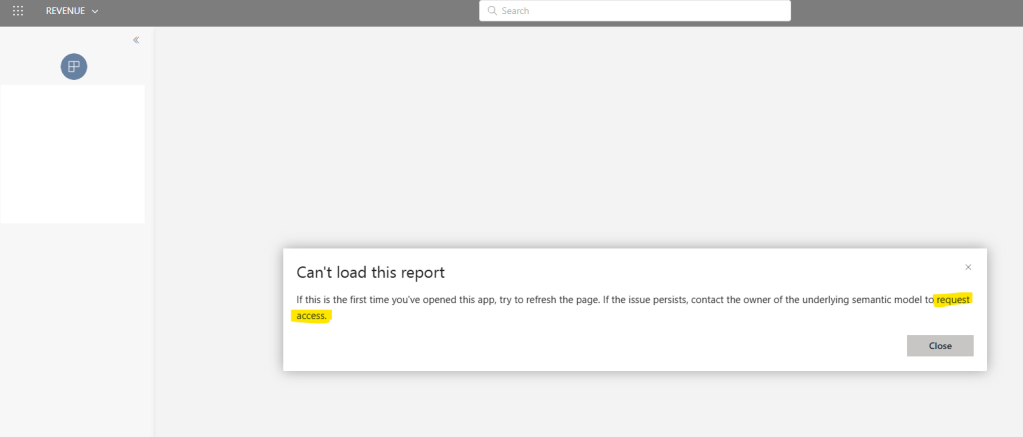
You published the report. The first what you think of is to grant other users access to that report?
Wrong!
Always start from semantic model permissions.
First of all, go to semantic model > permissions and define which permissions will users have (read-only for users who just need to analyze the report, or maybe build & reshare permissions if users will create reports based on this semantic model).
If you missed this step, users will get the error telling them to “contact the owner of the underlying semantic model to request access”.
2. Users do not have needed RLS permissions
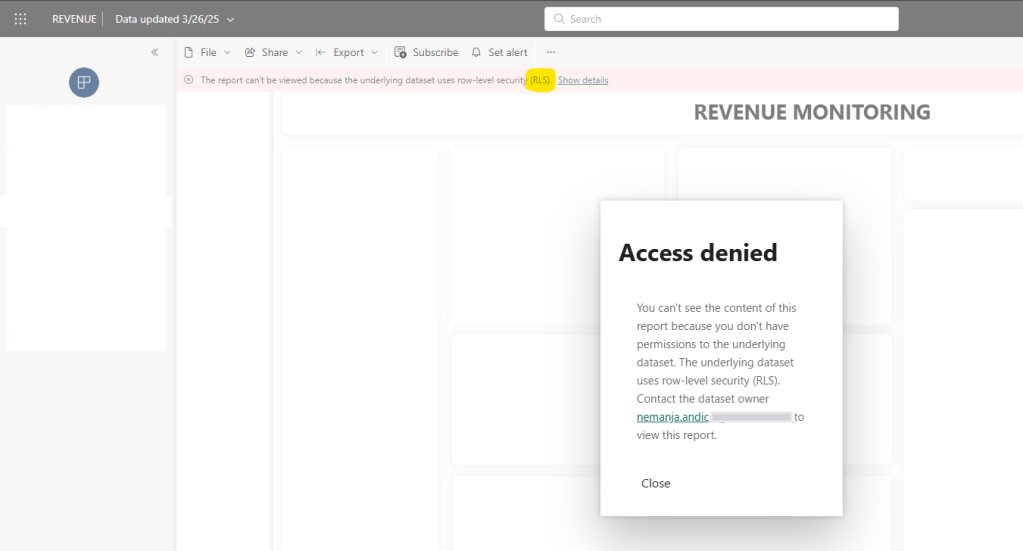
If your semantic model has RLS setup, then granting user permission to dataset is not the only step before sharing the report.
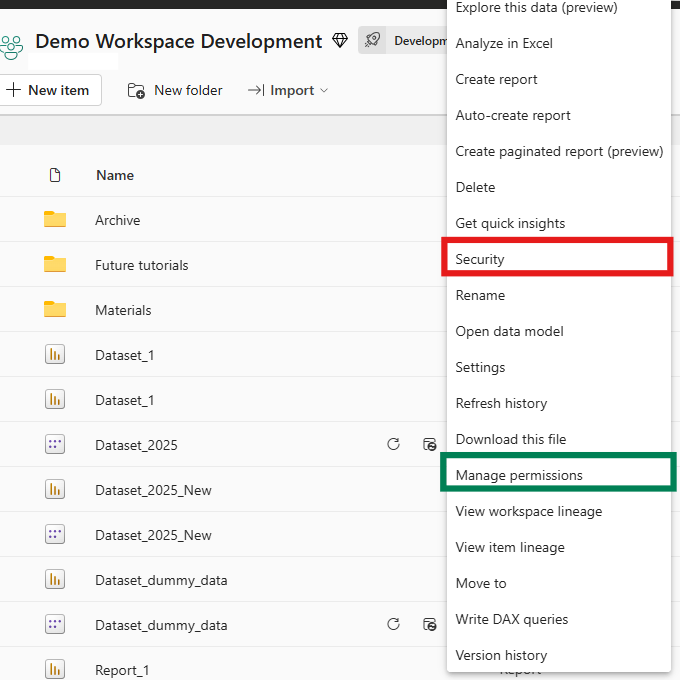
If RLS is used, you need to go to semantic model settings > security and add a user to relevant RLS role.
Semantic model PERMISSIONS vs SECURITY?
Permissions = we give users access to our semantic model (dataset) so that they can see data
Security = if we use RLS, after giving user permissions to semantic model, we also need to specify WHICH DATA users can see on reports
Example: if our semantic model contains data for sales in Europe, North America and Asia, we don’t want that all sales people see sales across all markets.
In that case we would create 3 roles, one for each market.
And then, if we have new user from Europe who needs to analyze reports, firstly we would give permissions to a dataset and then we would add this user to role “Europe”.
If we missed this step, users will get the error “The report can’t be viewed because the underlying dataset uses row-level security (RLS)”.
3. Users do not have access to the workspace
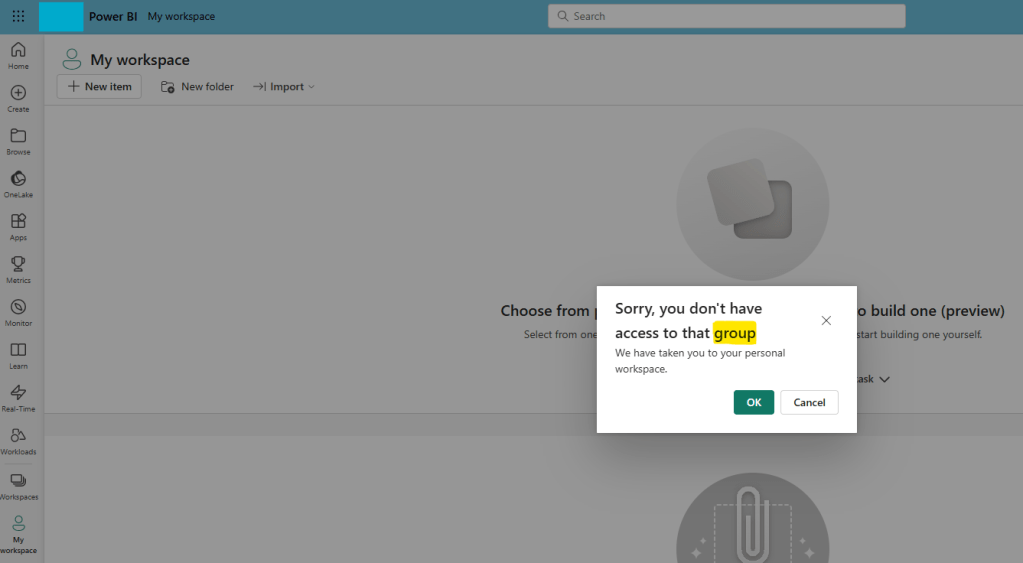
In the beginning, especially if only a few users will access reports, you will give users access to the workspace.
So, here is scenario.
You published dataset and reports to a workspace, gave all needed dataset permissions, sent workspace link to users, but they get error “You don’t have access to that group”.
Group? What is group?
For Microsoft, group is a workspace.
This means, users do not have access to a workspace.
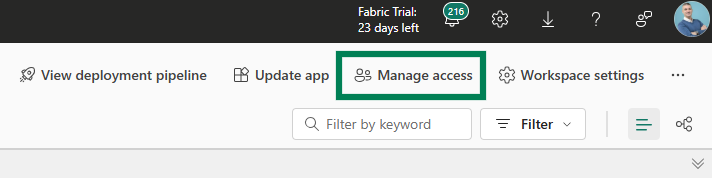
To solve it, open workspace, click on “Manage access” and grant user needed workspace role (viewer – if user will only analyze reports, contributor if user will create reports, member and admin if user will manage the workspace).
4. Users do not have access to the app
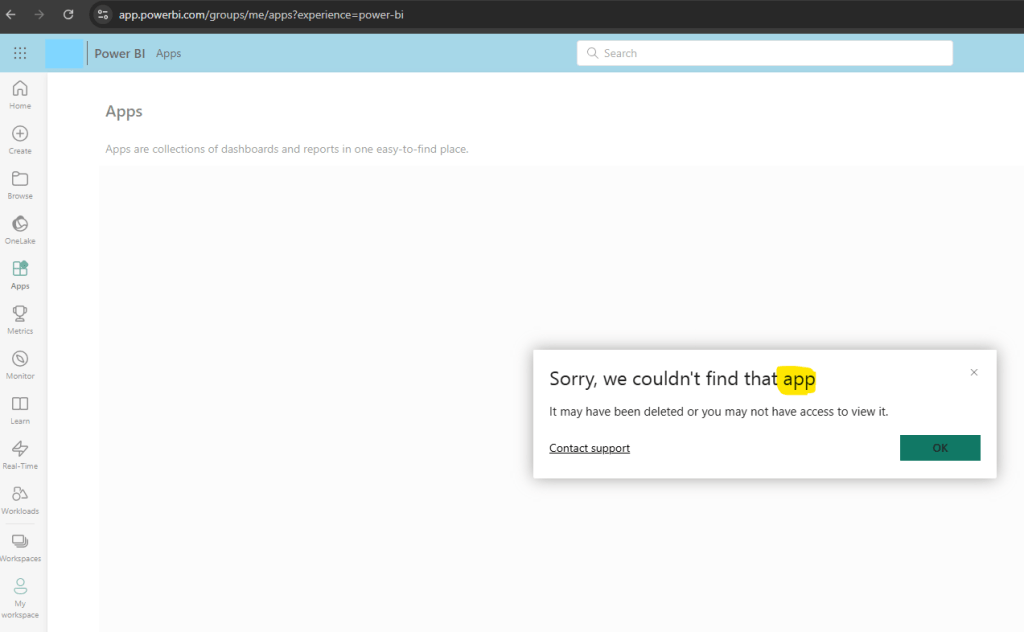
If there are more developers in the team, all of them updating content in a workspace, then it is a good idea to share reports with end users via App.
What is Power BI App?
Power BI App is the final output of your reports which you share with end users.
We keep workspace permission only for developers – end users do not have access to it as it is “non official”, “in progress” environment.
Once we are ready to publish all changes to end users, then we choose to publish/update the app.
So until you are working on some reports within workspace, end users will not see it – until you publish/update the app.
This is why it is so convenient to work with Power BI Apps.
Here, i will add another layer – we are sharing the app with external users (users from another company who should see our data).
If I, as internal user, open the app, copy the link of the app and then share it with external users.. what will happen?
Trouble :)
The link that i copied doesn’t contain information of my Power BI Service Tenant (CTID = unique online ID of my company for Power BI).

So, when external users tries to open that link, it will open Power BI Service within his/her company and it will not find the app.
WHY?
Because the app is on the tenant of my company. So i need to add that information when sharing the link.
When sharing the app link, follow these steps:
- open workspace and go to option “Update app”
- within 1st step “Setup”, scroll down and click on option “Copy link”
- on pop-up window click on “Copy”
This link contains url parameter CTID which is unique information pointing to Power BI Service of my company.

What if these end (external) users should have access to 10+ different apps?
Should we send them link for each app like this?
Not really.
In that case, the best option is to send them “Home Page” of your company Power BI Service.
Once they click on it, Power BI Service home page of your company will open and then they can navigate to Apps and choose which app they want to see.
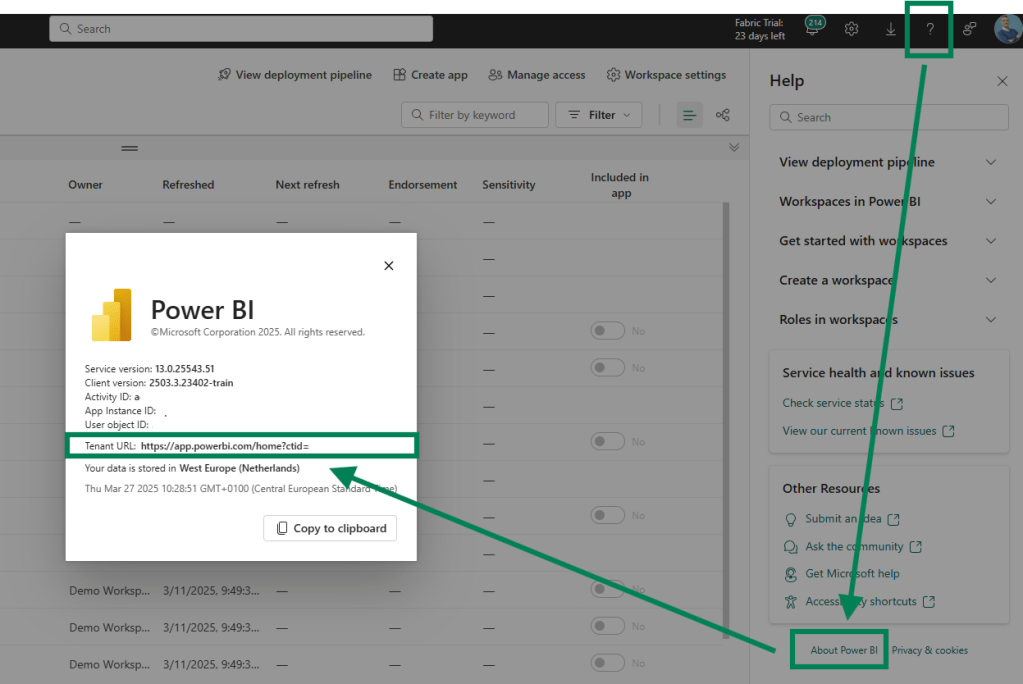
How to get link of this Power BI Service home page of your company?
Follow these steps:
- on the top-right corner, click on ? icon
- on the very bottom, click on the option “About Power BI”
- within next pop-up, go to the row which starts with “Tenant URL”. Copy that link.
Once you share this link, all external users will always navigate to your Power BI service home page.
5. Users do not have access to the report
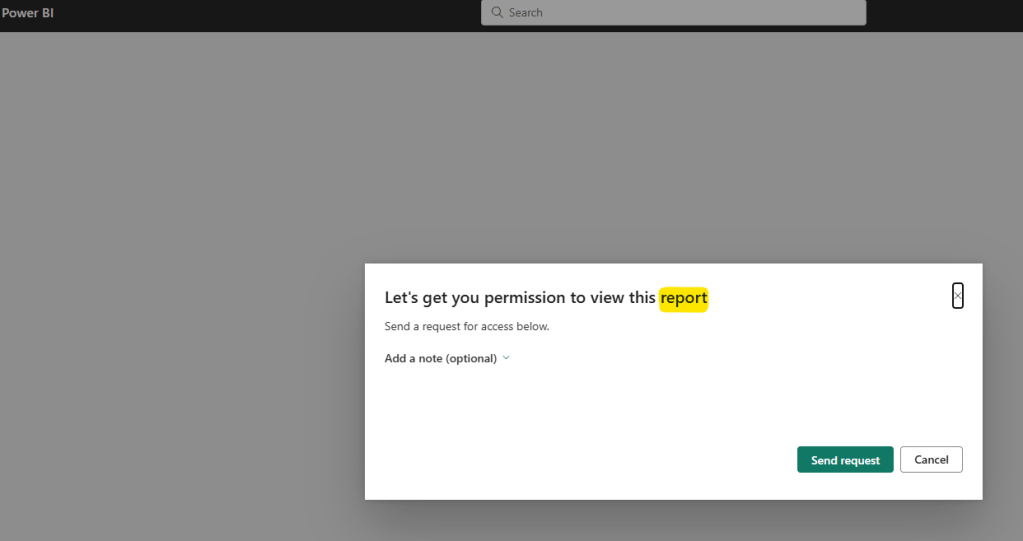
This is the scenario which i do not prefer. Granting permissions for specific users only to specific report is not very transparent.
If there are a lot of reports, it will not be an easy task to monitor who has access to each report.
Let’s cover the steps.
Once you open the report, on the top of the page there is option “Share”. The same you can get by clicking on 3 dots beside the report name and then clicking on “report permissions”.
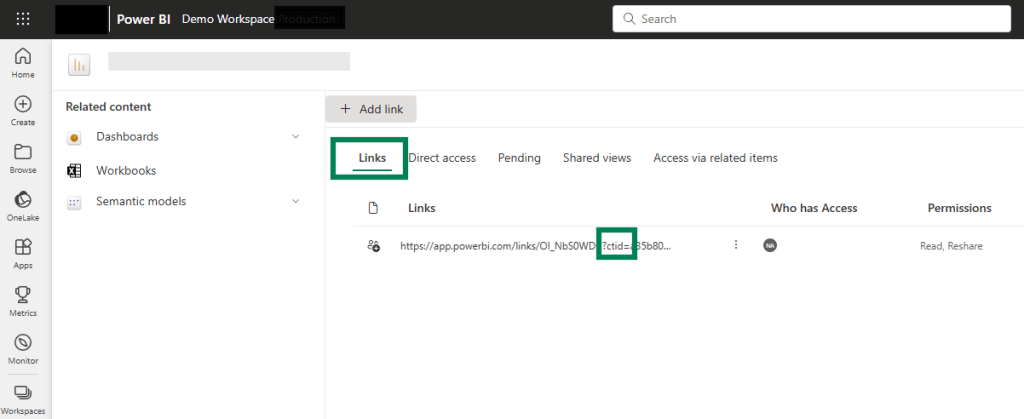
Good thing is that this link automatically contains ctid (unique id of your company for Power BI Service).
However, if you send this link to users who do not have access to this report, it will return the error.
Solution, under report permissions add a user who should have access to this report.
6. Incorrect link
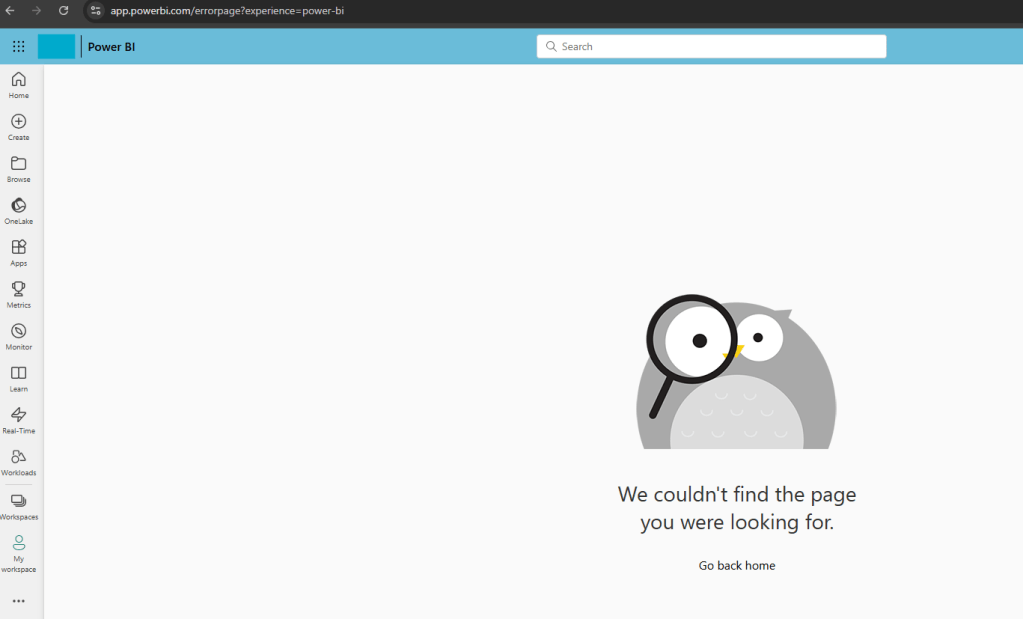
The last scenario for this post.
If user gets the error “We couldn’t find the page you were looking for”, this means there is an error in the link.
Make sure the link that you have sent is valid and resend correct version.
That would be all for this post.
I hope you found it useful!
Let me know in the comments if there are any other popular permission errors that i have missed.
 DATA TREKKING