
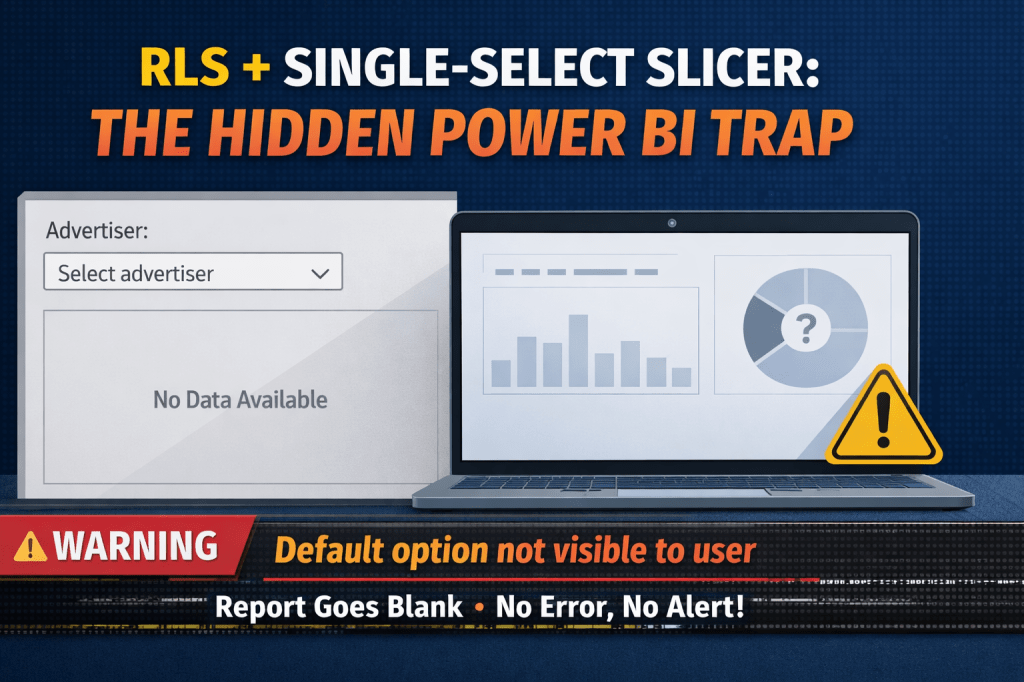
Single-select slicers in Power BI look user-friendly.
User must choose one value. What could possibly go wrong?
Well… quite a lot, if you ask me.
Especially when you mix them with Row-Level Security (RLS).
Let me explain a real issue i ran into.
Why people use single-select slicers in the first place
Single-select slicers are often used when:
- You want the user to focus on one item at a time (advertiser, client, project, etc.)
- Your measures or visuals are designed to work only when exactly one value is selected
The real problem: “Something must be selected”
A single-select slicer always needs a selected value. Power BI enforces that rule very strictly.
Now imagine this scenario:
- Your slicer is set to single select
- It has a default selected value (example: country = USA or media type = TV or social media = Instagram….)
- The report uses RLS
- A user opens the report…
- …but does NOT have access to that default value because of RLS
What happens?
- The slicer still tries to select that value
- RLS removes it
- Result: nothing is selected
- Result: every visual is blank
No error message.
Just a completely empty report.
From the user’s perspective, the report is simply BROKEN.
Why for you everything works fine?
- It works perfectly for you – your permissions as contributor (at least) override RLS. RLS has only impact on users with Viewer role. So basically, you have access to full data
- It works perfectly in Desktop when building the report
My solution: add a fake row on purpose
Artificially add one extra row to the column used in the slicer.
Example: if single select slicer is taking field Country, artificially add new row in that column, and this row will have text “Select country”.
If single select slicer is taking field Media Type, artificially add new row in that column, and this row will have text “Select media type”.
If you have several single-select slicers on the report, you will need just one extra row in table and in that row you will have these texts under each needed column (if columns are in the same table).
Purpose of this artificial row? This row:
- Becomes the default selected value
- Acts as a safe placeholder – it prevents any action before the slicers has really been selected
Making it actually useful
The goal: show report only after the user selects value in the single-select slicer.
How to make it?
Create landing page on the report.
Only this page is visible – all other pages are hidden.
On this landing page, add standard elements (logo, report title, other information) and then the single-select slicer.
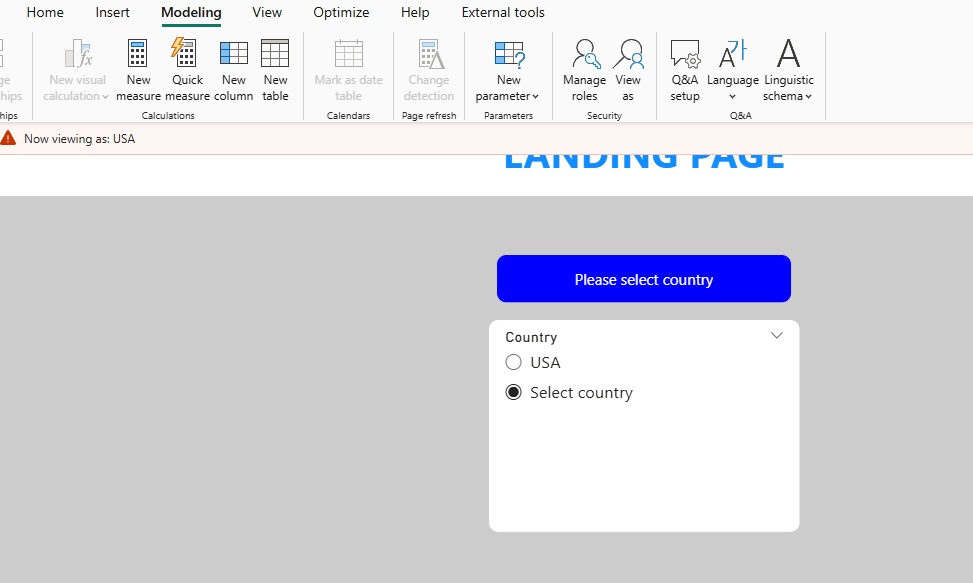
Default selection: “Select country”. Not USA, not Canada, not Serbia, not Australia.. but “Select country”.
So, then what? Here is the beauty.
Add 2 buttons on the page.
Button 1: above the slicer. Button text “Please select country”.
Button 2: below the slicer. Button text “View report” – if you have only one report page. If you want to give navigation to multiple pages, make button for each page (in this case, button texts will be page name).
Button 2 has action to go to specific page.
Make these buttons appear conditionally.
If default selection hasn’t been changed, show button 1, hide button 2.
If default selection has been changed, hide button 1, show button 2.
Using dynamic font color, background color, page navigation name, you can make all of it using DAX.
What means dynamic? When you go to formatting and want to change font color.. if besides there is Fx button, it means font color can be dynamic… based on specific condition or specific dax logic.
Make it dynamic!
You can download the pbix file which contains:
1. measures to format button 1
2. measures to format button 2
3. roles so that you can test how it looks like when you change roles
Example – changing roles (view as).
Go to modeling > view as > choose All. You will see everything.
If you choose “USA”, default selection stays, but you will be able to select only USA. This is what users within role “USA” would see when they open the report.
After selection is made (“USA”), we show navigation buttons:
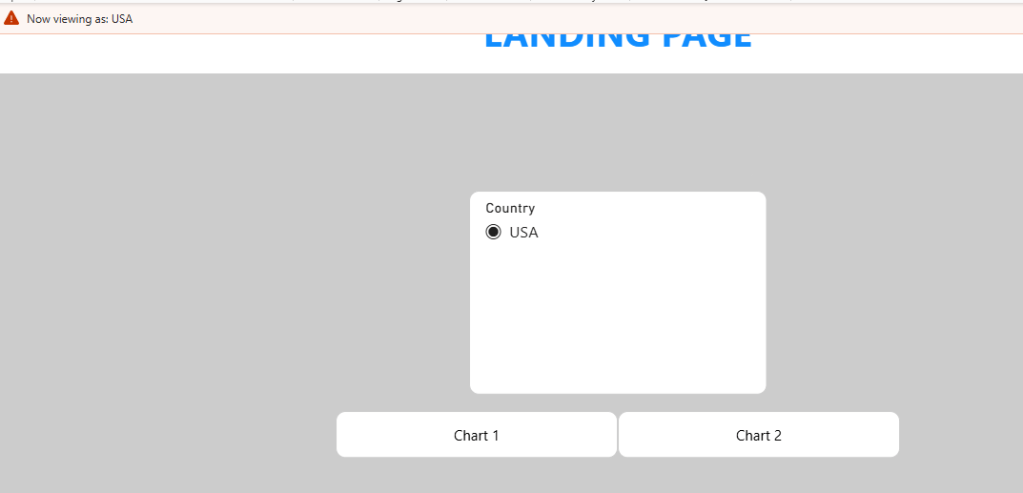
So, nothing breaks on the report.
Pretty clean solution for this kind of problem.
And trust me, you don’t want external users to complain that report is broken because everything is blank.
Or even worse, default selection is item that they should not see at all (advertiser name, agency name…).
You can download pbix file here: https://drive.google.com/file/d/1WZz9W1igsYjWG8U-E28dIp2uHKTRQtxo/view?usp=sharing
 DATA TREKKING